What this app does
A handful of tools that hand work to each other. You do not need all of them on day one — start by counting.
The first three sections — this one, Setting up and Your first count — are everything you need to count a shelf and correct Shopify. About ten minutes.
Everything after that is reference. Come back to it when you need it, or use the boxes at the top to jump straight to a job.
| Tool | What it is for | What it does to Shopify |
|---|---|---|
| Stock takes | Count what is really on your shelves | Replaces the quantity with your count |
| Deliveries | Check a supplier's boxes before they become stock | Adds what you received |
| Transfers | Move stock between your own locations | Moves it from one to the other |
| Add & Remove Stock | Record stock that arrives or leaves without an order or a sale — donations, returns, damage | Adds or takes away what you scan |
| Reorder points | Get told what is running low | Nothing — it writes a draft order for you |
| Reports & stock value | Get the numbers out for your accountant, supplier or insurer | Nothing — it only reads |
Counting never changes your Shopify stock. Everything you scan or type is held inside this app until somebody deliberately presses the button that applies it — and that button always tells you how many items will change before it does anything.
Which means a miscount is not a disaster. Fix a number, recount a shelf, or throw the whole count away. Shopify never knew.
Where it runs
Almost everything exists in both the admin and POS, and they are the same data — start a count on a computer and finish it on a phone if you like.
| Where | What you do there |
|---|---|
| Shopify admin on a computer | Set things up, create counts, review differences, approve changes, get reports |
| Shopify POS phone or tablet | The actual counting, scanning and unpacking, on the shop floor |
| Team link your staff's own phones | Counting only — from a link and a PIN, with no Shopify account and nothing to install. See Counting with your team. |
Throughout this guide, Admin and POS tell you which one a step happens in.
What you need
- A Shopify store with locations set up, and stock tracked on the products you want to count
- Admin access to your store, to install the app and set it up
- Shopify POS on a phone or tablet, signed in to the location being counted — optional: you can also count in the admin, or on your staff's own phones with a team link
A barcode scanner is optional — the device camera works, and so does a paired scanner gun. The app listens for both from the moment a count opens.
Setting up
The first time you open the app, a short setup guide asks how you will count — In this app or On Shopify POS — and ticks each step off as you go. You can skip it at any time; the dashboard keeps a reminder of the steps left, with a button to open the guide again.
Then there is nothing to install on a device. Create a count under Stock takes, count it with a USB scanner, the camera or a team link, and apply it from the same page. The rest of this section is for shops that count on POS.
On POS, three things have to be true before your staff can update Shopify stock from a device.
Until you set a manager passcode, POS refuses to change stock. Not a bug — on purpose. The app would rather stop a staff member than let an unsupervised device rewrite your inventory.
It also blocks finishing a count, not just applying one. So without a passcode your staff can scan a whole shop and then be refused at the last screen. Set it first.
-
Set a manager passcode Admin
Go to Settings → POS access → Manager passcode and press Set passcode. Four to eight digits.
This is what your staff type on the device whenever something irreversible is about to happen: finishing a count, applying it, adding a delivery to Shopify, adding or removing stock, or adjusting a product.
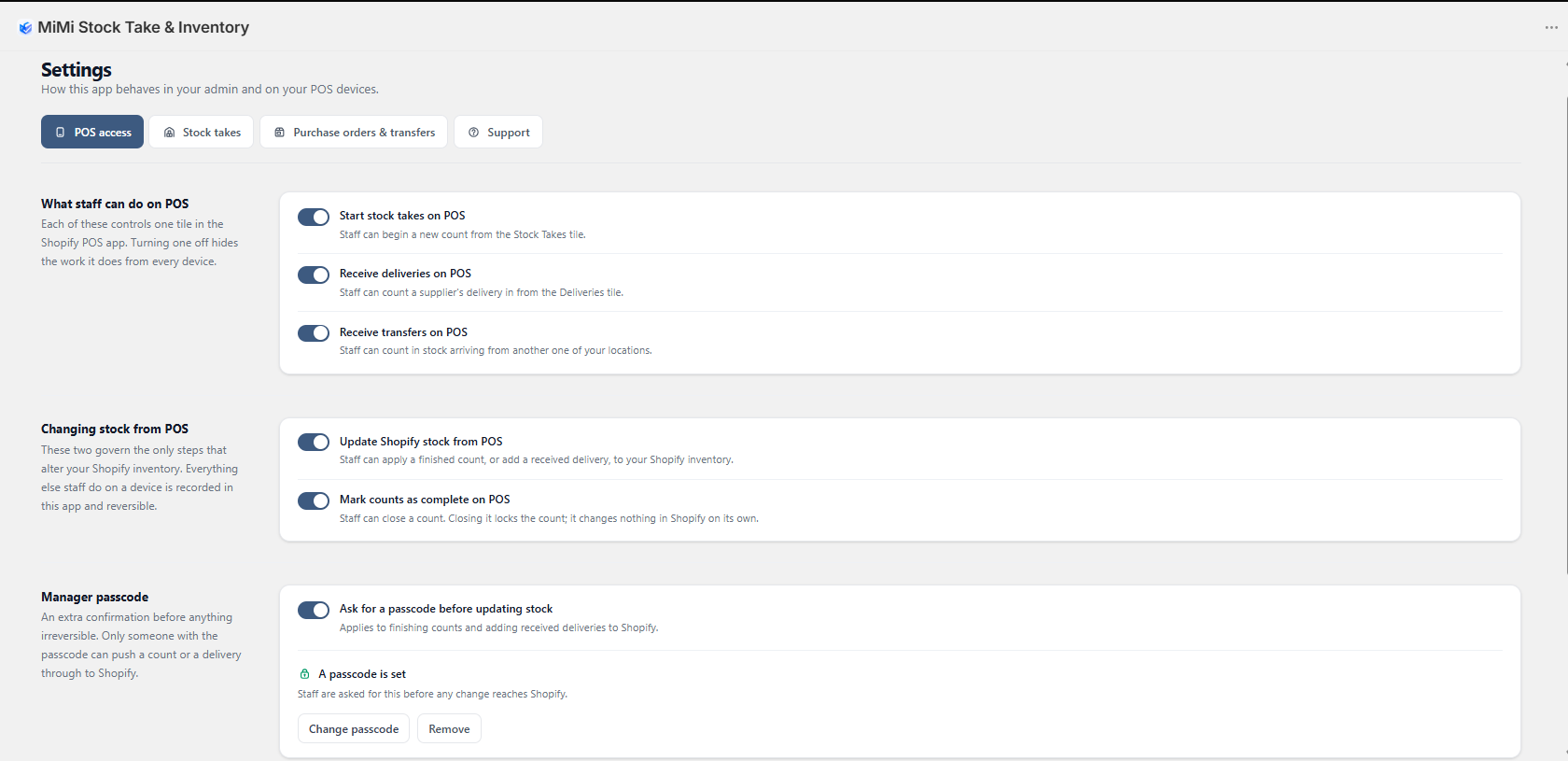
Settings is where you decide what staff are allowed to do on POS. The manager passcode lives under POS access. -
Add the tiles to your POS POS
On a POS device: ≡ More → Settings → Customize home screen → Add tile → Apps, then add the tiles you want — Stock Take, Deliveries, Transfers, Add Stock and Remove Stock.
Adjust stock and Reorder point are not tiles: they appear when you open a product on POS.
This step ticks itself once something arrives from a real device.
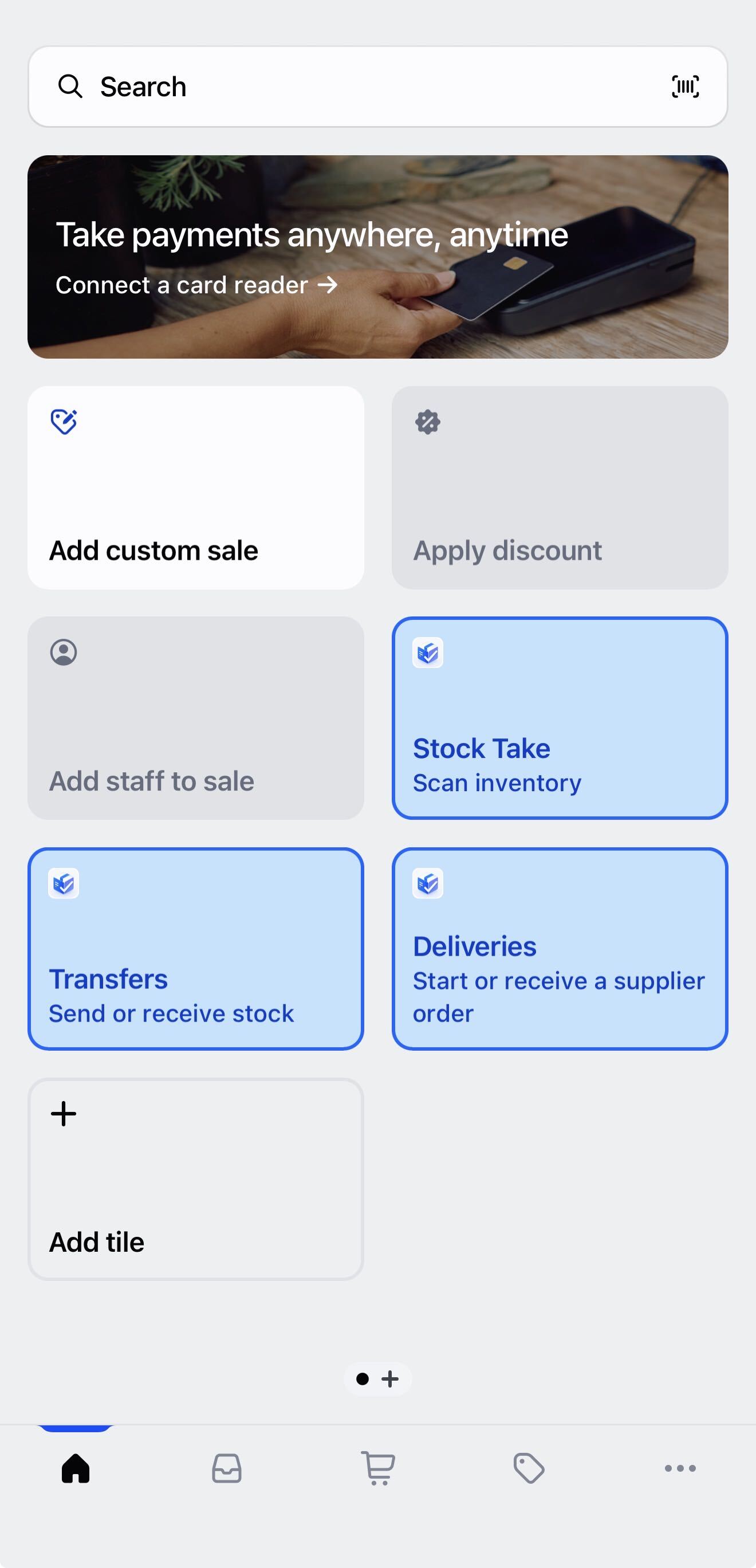
Once added, the tiles sit on your POS home screen. Staff never need the admin. -
Run a count and apply it POS
Count one shelf, finish it, apply it. That last step is the one that corrects Shopify — and doing it once end to end is the fastest way to understand the whole app.
It is write-only. Nothing in the app can show it back to you, and changing or removing it needs the current one. There is no reset and no email recovery — write it down somewhere safe.
Five wrong attempts within fifteen minutes locks the whole shop out for a few minutes, not just that one device. A correct entry clears it immediately.
Your first count
Start small. Pick one shelf — one supplier's products, or one product type — rather than the whole shop. Ten minutes, and it teaches you the entire flow.
-
Start the count POS
Tap the Stock Take tile, then Start a new count.
Under “What do you want to count?” choose One vendor and type a supplier's name exactly as it appears on your products. Name the count if you like — otherwise it is named with today's date.
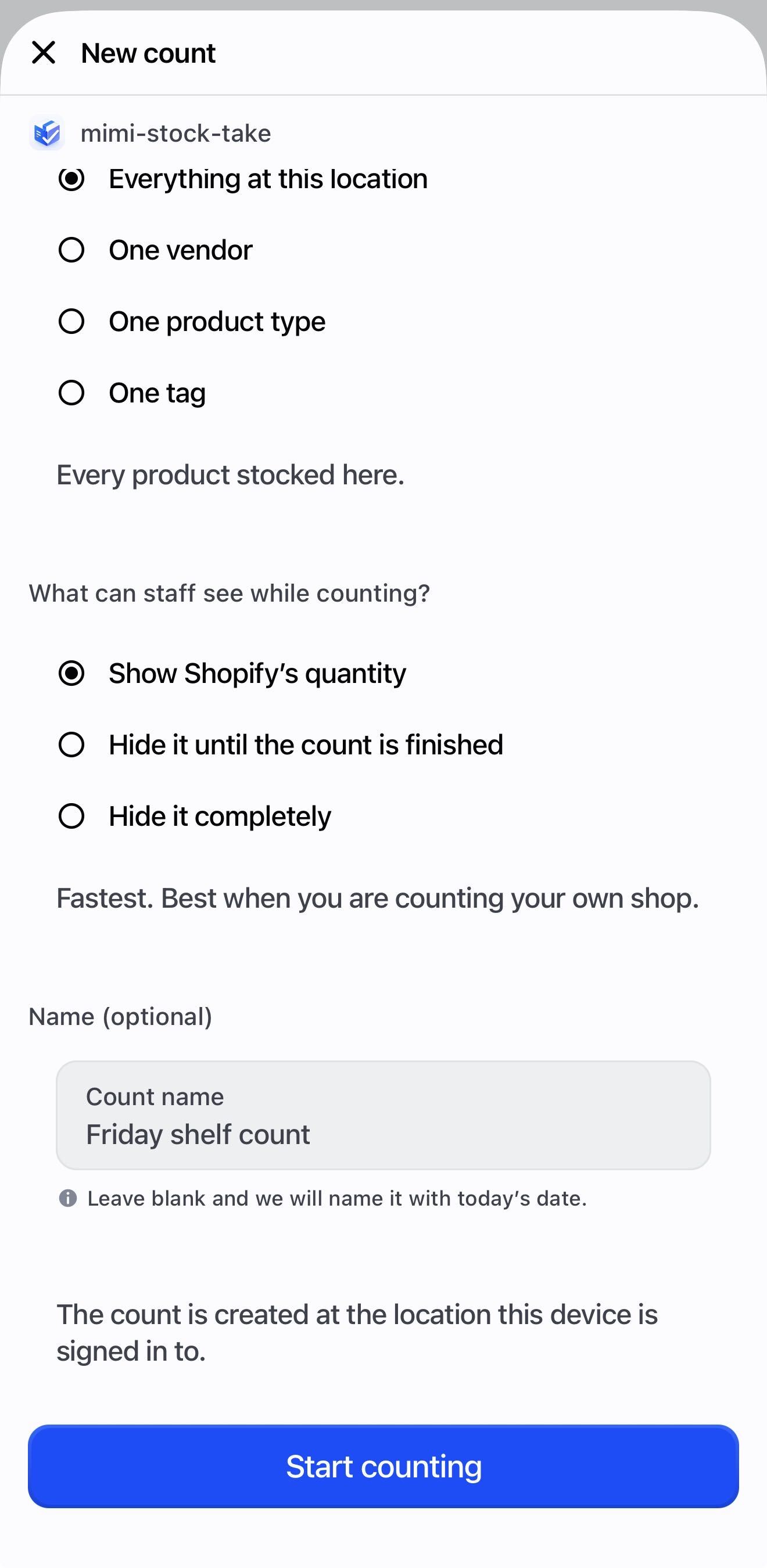
Choosing One vendor instead of everything is what makes this a ten-minute job rather than an all-day one. -
Count the shelf POS
Scan each item with a scanner gun, or tap Scan with camera. Every scan adds one.
No barcode? Type part of the name into Search name, barcode or SKU and enter the figure in the Counted box.
Shelf empty? Tap None on shelf — that records a real zero, which is different from leaving the row alone.
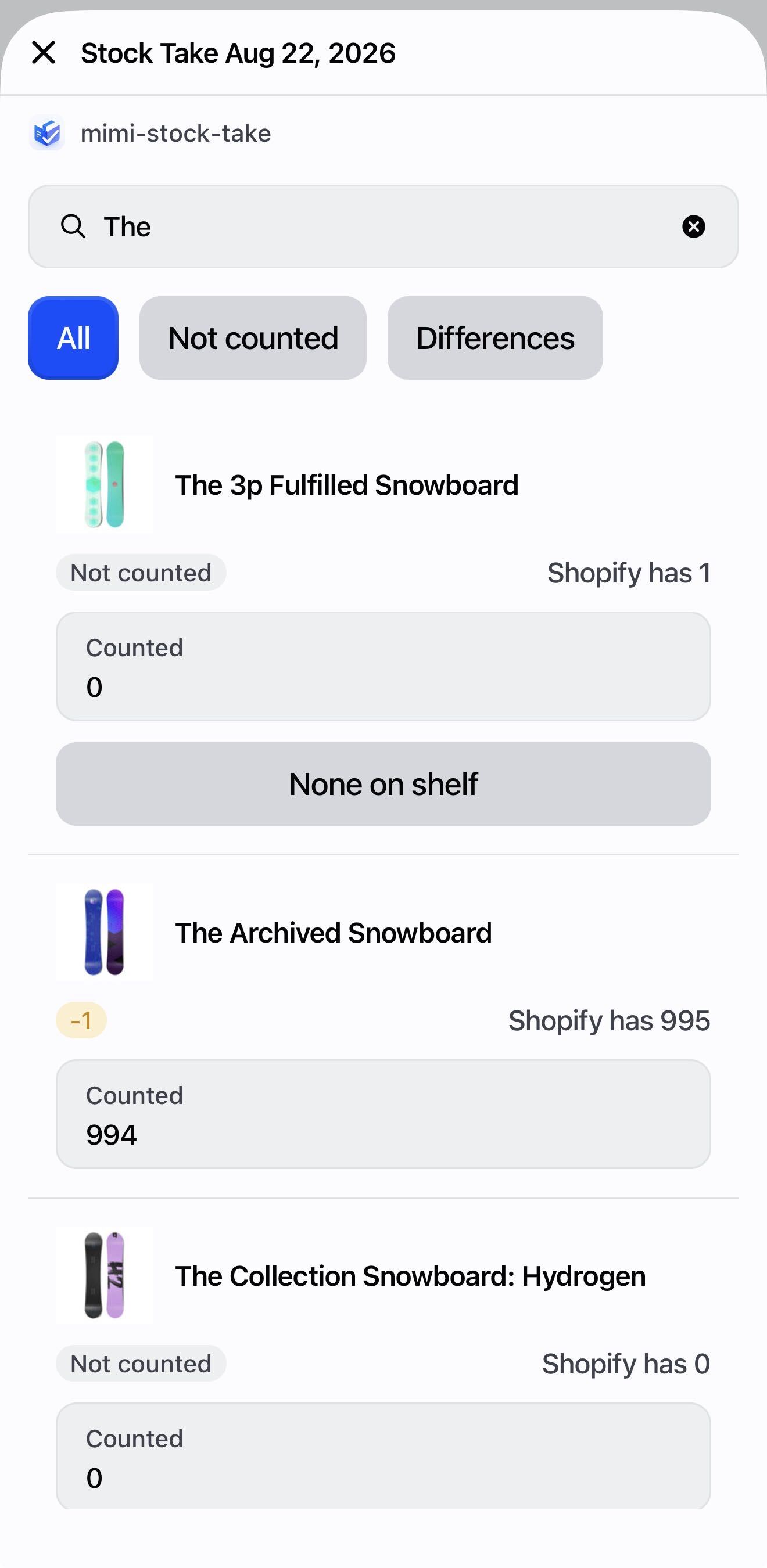
Each row shows the product picture, what Shopify has, and a box for what you found. The badge on the right tells you at a glance whether a row has been counted. -
Finish counting POS
Tap Finish counting. The screen tells you how many items were counted and how many were not, and reminds you to make sure everyone counting has finished.
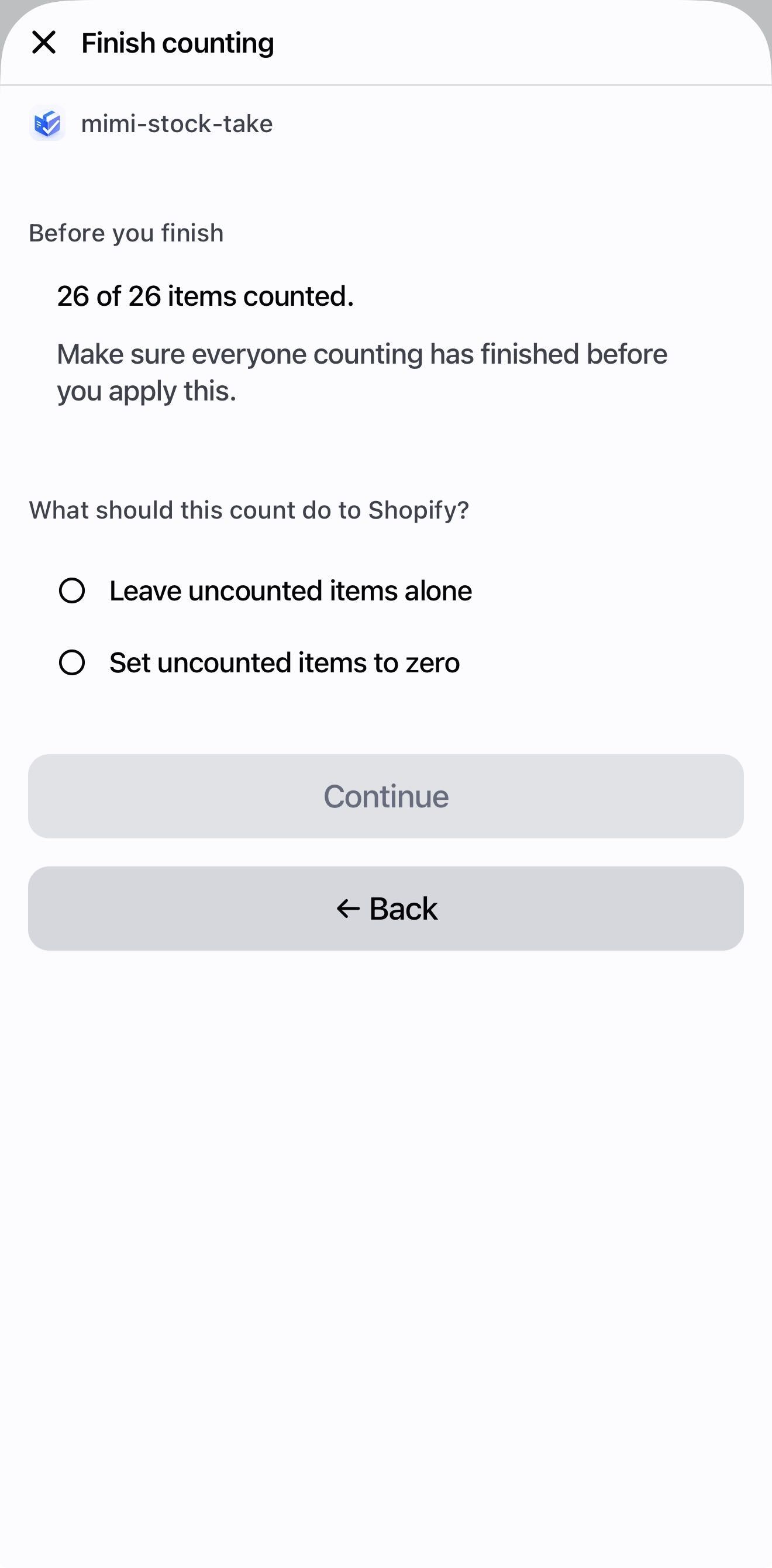
Nothing has reached Shopify yet. Finishing only closes the count to further scanning. -
Apply it to Shopify POS
Choose Leave uncounted items alone — the safe option, and the right one for a first count.
Enter your manager passcode. The confirmation names how many items will change. Confirm, and Shopify is updated.
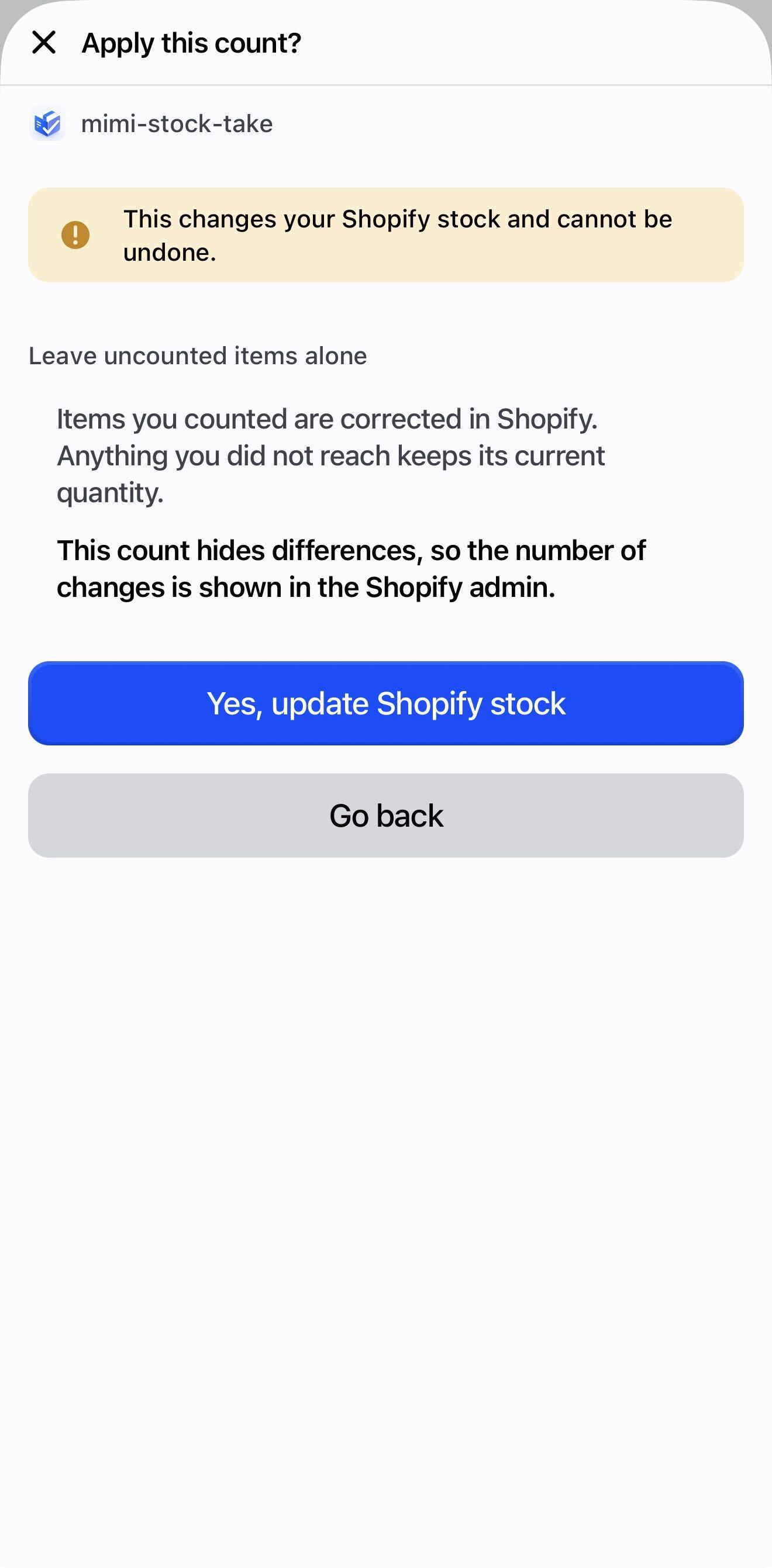
This is the only screen in the whole app that changes your Shopify stock — and it always tells you how many items it will touch first. -
Check it in the admin Admin
Open the app in your Shopify admin, go to Stock takes, and open the count. Every line shows what Shopify had, what you counted, and the difference.
That is the whole loop. Everything else in this guide is a variation on it.
Counting on POS
Everything the counting screen can do.
Three ways to count
| Method | How | Best for |
|---|---|---|
| Scanner gun | Just scan. The screen listens from the moment it opens — no button to press first. | Fastest for a long shelf |
| Camera | Tap Scan with camera. It closes itself after each scan and shows you what it counted — tap Scan next to carry on. | When there is no gun to hand |
| Type it | Search the name, then use the Counted box. | Twelve identical shirts; missing barcodes |
Do not scan it twelve times — type 12 into the Counted box. Faster, and no risk of a lens reading the same label twice.
What you see after each scan
A scan counts straight away — there is nothing to tap first. The screen then shows you what it counted:
- The product picture, name and variant, so you can check it against the thing in your hand
- The number it now stands at, in a box you can type over if it is wrong
- Scan next to carry on, or Done scanning to go back to the list
Typing a new number shows a Save button that names the figure it will write. You do not have to tap it — carrying on with Scan next saves it too, so a correction is never lost.
Fix it right there. Type the correct number into the box on that screen — you do not have to find the item again in the list afterwards.
Scanned something twice by accident? Same fix: type what is actually on the shelf.
If the count was set to Scan every unit, quantities cannot be typed at all — that is the whole point of the setting, and the app will not let it be worked around.
So the screen offers Start this item again instead: it sets that product back to nothing, and you rescan the units that are really there.
If your staff need to type figures on that count, a manager can allow it from the counting screen with the manager passcode.
Counted zero is not the same as not counted
This is the distinction the whole app turns on, and the one thing worth teaching your staff.
| What it means | What happens when you apply | |
|---|---|---|
| Counted: none on shelf | Somebody walked to the shelf and it was empty | Shopify is corrected to 0 |
| Not counted | Nobody got to it | Left alone — unless you choose to zero uncounted items |
If two products share a barcode
Shopify allows it, so the app asks rather than guessing: “2 products share the barcode 5012345678900. Tap the one you scanned.” You are holding the item — you can tell them apart.
Counting with no signal
Counts are saved on the device first and sent when the connection returns. Rows update immediately either way. A device holds up to 250 pending counts.
If the screen says “Waiting for N saved count(s)”, get back into signal before closing. Those counts have not reached the server yet.
Counts from the admin
Everything you can do on a phone, you can do on a computer — plus the reviewing, which is easier on a big screen.
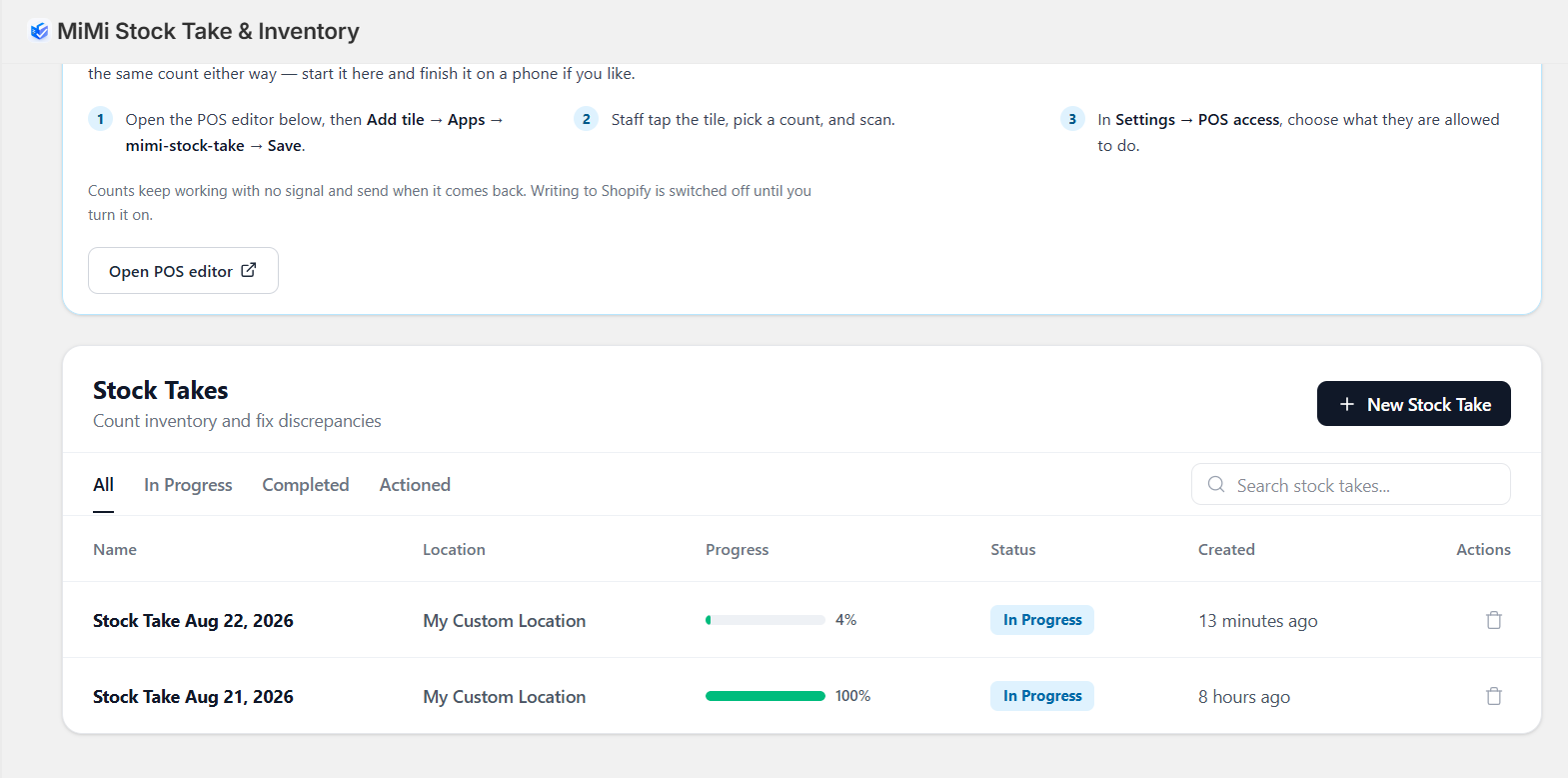
Creating one
Press New Stock Take, pick the location, and choose what to count — everything, one vendor, type, tag or collection, the products you pick, or Scan as you go. The choices are explained under Cycle counts.
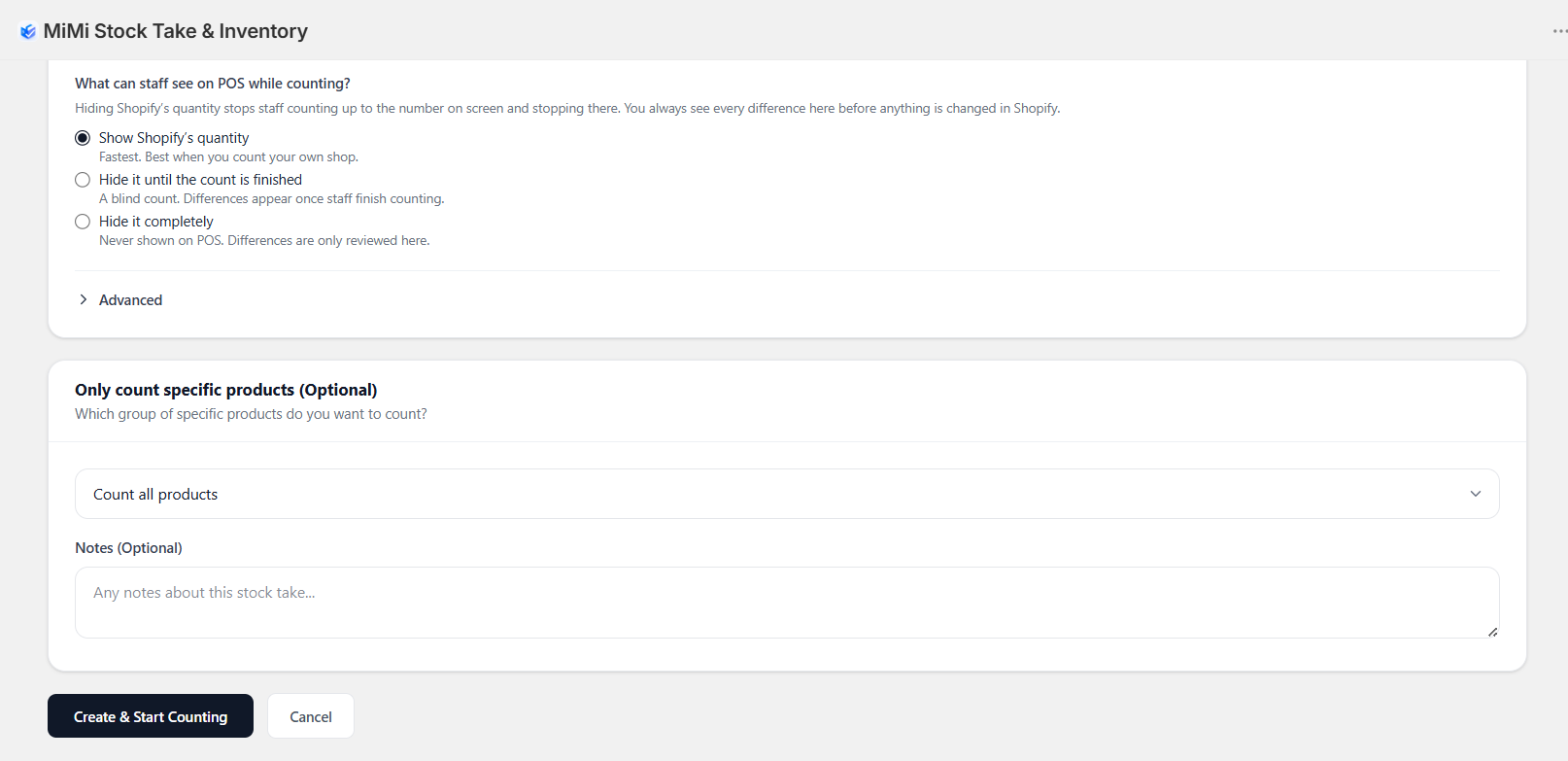
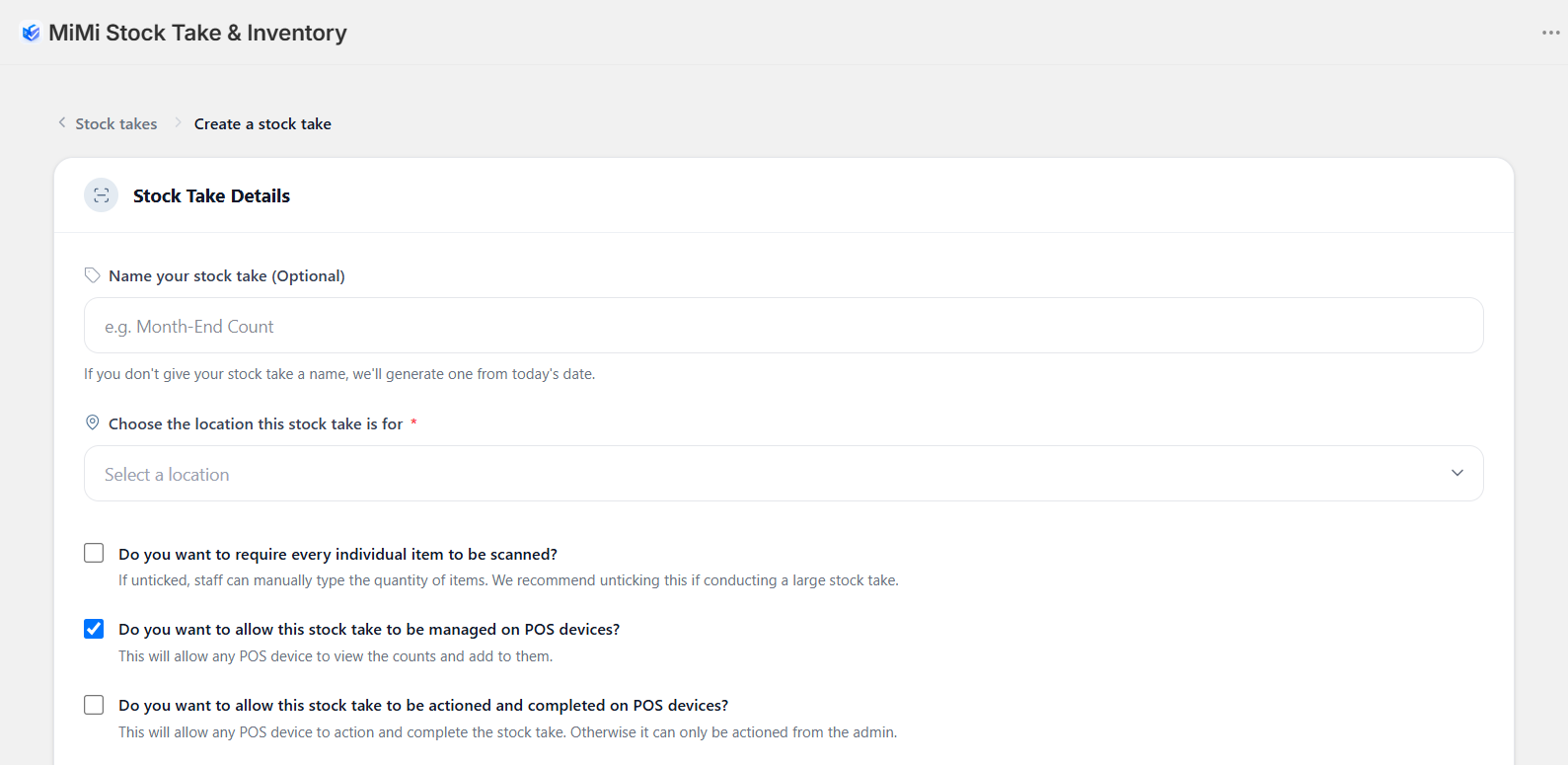
Counts created here have “allow this stock take to be actioned and completed on POS devices” unticked by default. Leave it unticked and your staff will count the whole shelf, tap Finish, and be told the count must be finished in the admin.
They can still get through it — there is an Unlock with the manager passcode button on the device — but it is easier to tick the box now.
A big count keeps loading in the background
A count of a few thousand products is ready at once. A bigger one keeps loading after you create it: the page shows “Getting your products from Shopify” and how many have arrived so far. It can take a few minutes on a large catalogue.
You can leave the page — loading carries on from the same place. Or press Start counting now to count the products that have arrived and stop waiting for the rest. If you do, do not set uncounted items to zero: the products that never arrived would be counted as missing.
Reviewing a count
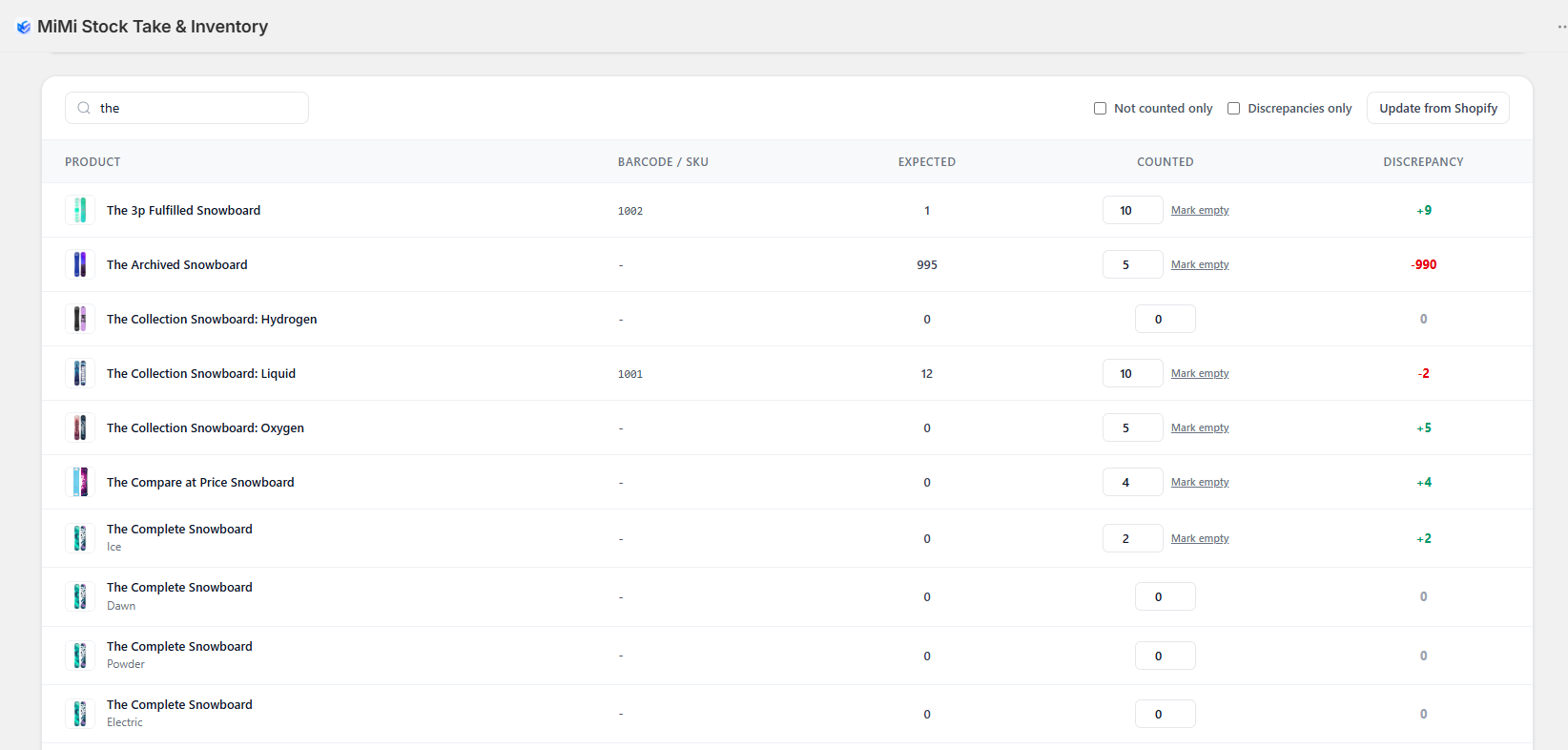
You can also scan straight into a count from here, using the scan bar at the top of the page — handy with a USB scanner plugged into the computer.
Press Use camera. On a phone it opens the camera; on a computer it asks for a photo. Take a picture of one barcode and it is counted, just like a scan.
It works one photo at a time, because Shopify's admin cannot show a live camera view. If it says “No barcode found in that photo”, fill the frame with the barcode, hold steady and try again — or type the barcode instead.
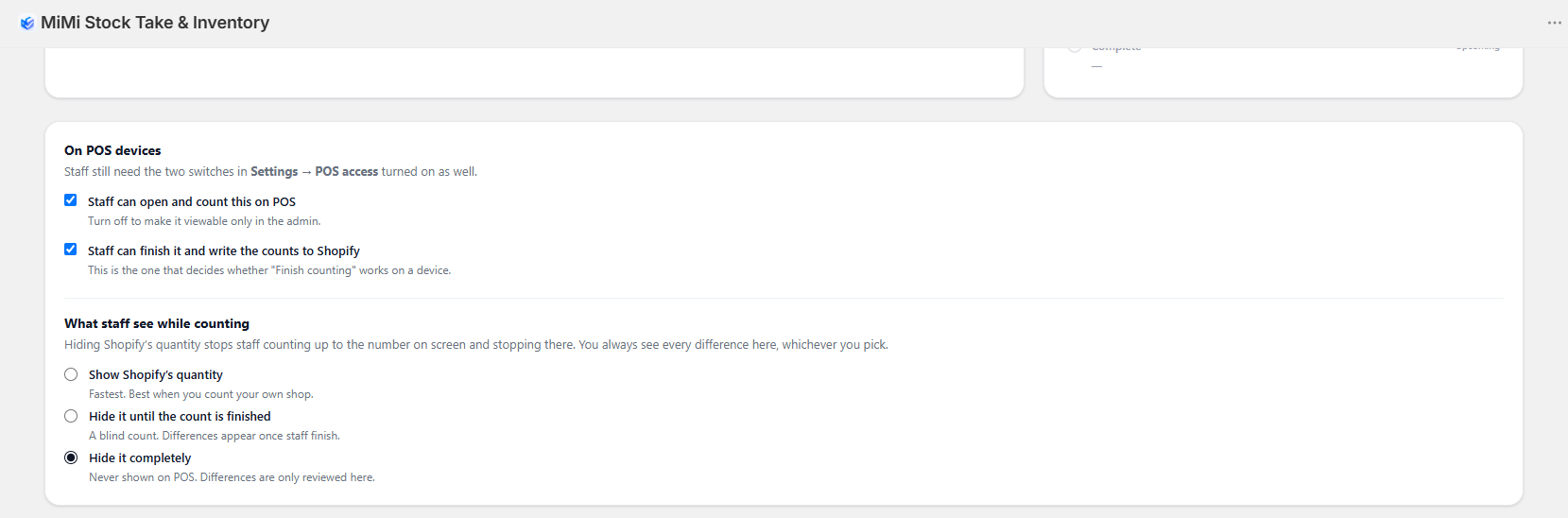
Changing what POS can do, mid-count
Counting with your team
Your staff count on their own phones, from a link and a PIN — no Shopify account, no POS, nothing to install.
-
Open the team link Admin
Open the count and press Team link. The first time you open a new count it opens by itself — tick Don't open this by itself when a new count starts if you would rather it did not.
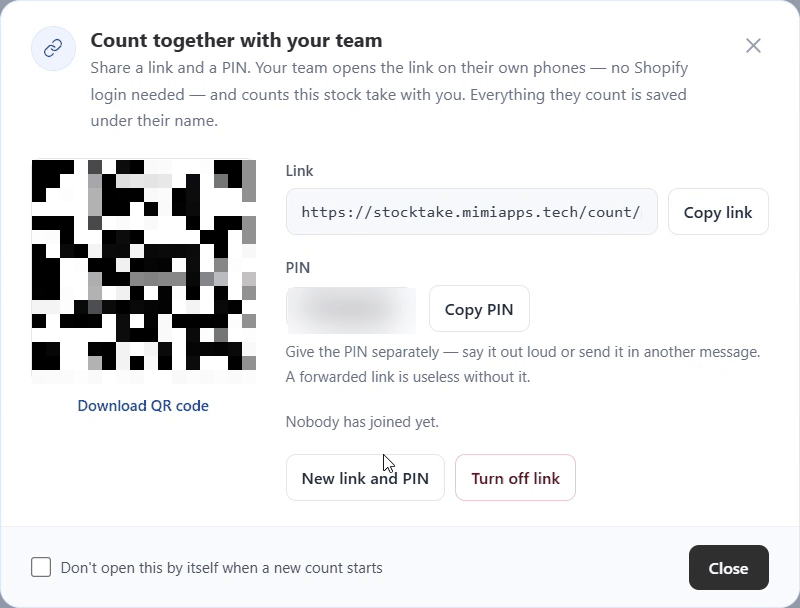
One link and one PIN per count. The QR code is the same link, for phones held up to a screen or a printout. -
Share it Admin
Press Copy link or Download QR code and send it to your team. Give the PIN separately — say it out loud or send it in another message. A forwarded link is useless without it.
-
Count on the phone
Each person opens the link, types their name and the PIN, and presses Start counting. They scan with a scanner or Use camera, or search a product and type the quantity — the same counting as anywhere else, saved under their name.
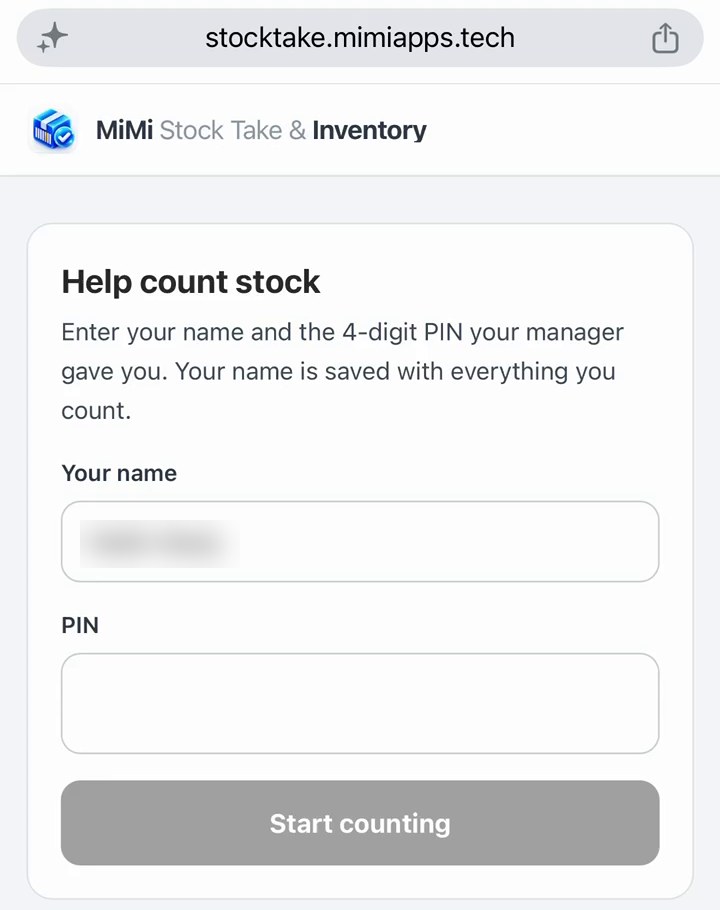
What your staff see when they open the link.
It counts into this one count and nothing else. Nobody on a team link can finish a count, apply it, or change Shopify — that stays with you.
It works on blind counts: phones hide Shopify's figure exactly as POS does. And it stops by itself when the count is finished — phones then see “This count is finished”.
Keeping it under control
| Button | What it does |
|---|---|
| New link and PIN | The old link stops working at once, on every phone using it. Use it if the link reached the wrong person. |
| Turn off link | Stops counting from phones on this count. Everything already counted stays. |
Phones count through the same switch as POS devices. If Let POS devices add to this count is off for a count, phones see “Your manager has paused counting from phones for this stock take”, and the admin offers Allow devices to count.
Wrong PINs are limited: ten from one network means a 15-minute wait, and thirty in all pauses the link for an hour. New link and PIN unlocks it straight away.
Who counted what
Once anyone has counted, the count page shows who did what.
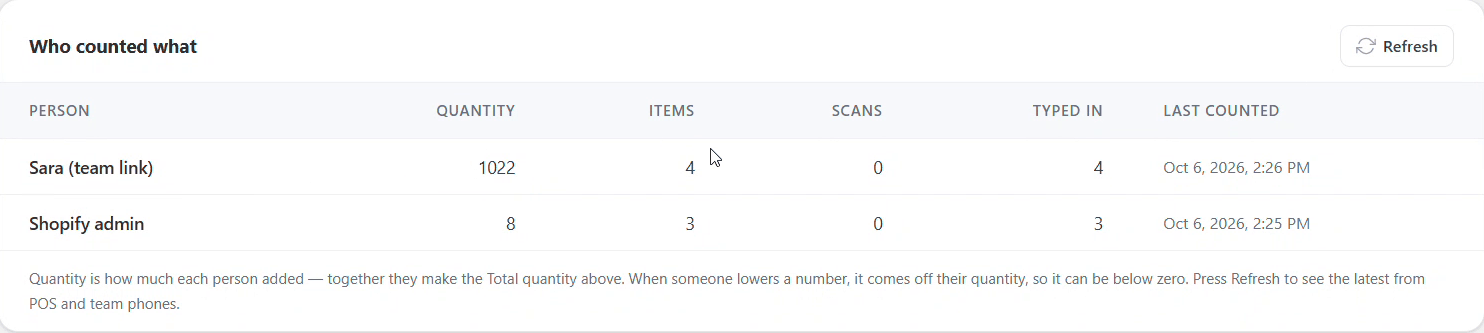
- Team link names appear as Name (team link), exactly as they typed it.
- Everything done in the admin is one row, Shopify admin; all POS devices together are one row, Shopify POS.
- When someone lowers a number, it comes off their quantity, so a figure can be below zero. Press Refresh to see the latest from POS and team phones.
Cycle counts
Counting a section at a time, on a rota, instead of closing the shop for a full count.
There is no separate “cycle count” mode — it is simply what happens when you scope a count to part of a location. Pick a different slice each day and you are cycle counting.
| Scope | Matches | Where |
|---|---|---|
| Everything at this location | Every product stocked there | Both |
| One vendor | Products whose Vendor matches exactly | Both |
| One product type | Products whose Type matches exactly | Both |
| One tag | Products carrying that tag | Both |
| Products without a tag | Products that do not carry the tag — with Tag counted products on, this is “everything the last count missed” | Both |
| One collection | The products in a Shopify collection you pick from a list | Both |
| Choose specific products | Just the products you pick, up to 250 | Admin only |
| Scan as you go | Starts empty — each product joins the count the first time it is scanned | Both |
Vendor, type and tag must match what is on the product in Shopify, capitals included. Acme will not find ACME. If a count comes back empty, this is almost always why.
A rota that works
Split by whatever your shelves are actually organised by — usually vendor or product type. Count one slice a day, at the same time each day, and you get through everything in a fortnight without ever closing.
A count holds up to 20,000 products. Slicing still makes each count quicker to finish — and easier to check.
Scan as you go — for big or mixed shops
When your shelves are not organised by vendor, type or tag, or your catalogue is too big to load, choose Scan as you go. The count starts empty, and every product you scan is looked up in Shopify and added — the screen says “Added …”. There is no limit on catalogue size.
- Adding a product the count has not seen yet needs a connection. Scanning one that is already in the count works offline as usual.
- If a barcode is on more than one product, you are asked which one you are holding.
A scan-as-you-go count only knows what it saw, so Set uncounted items to zero is not offered. To clear stock you did not find, count that section by vendor, type, tag or collection — or use Products without a tag after a tagged count.
Blind counting
Hiding Shopify's own figure from whoever is doing the counting.
Someone who can see “Shopify has 12” tends to count up to twelve and stop. They stop counting and start confirming. And anyone hiding a shortfall can simply type the number the screen already gave them.
A blind count removes the number, so what gets recorded is what is genuinely on the shelf.
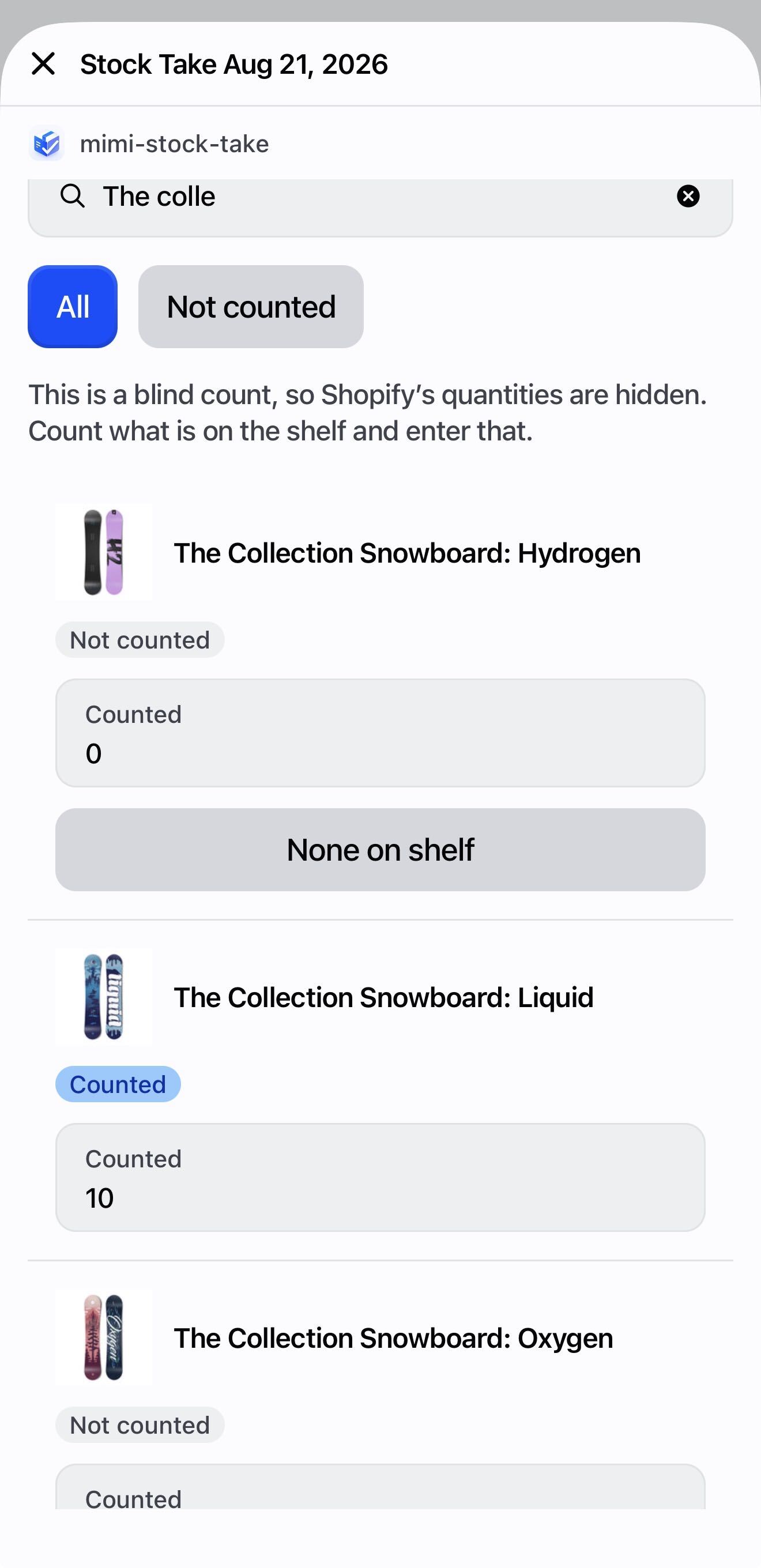
| Option | Staff on POS see | Use it when |
|---|---|---|
| Show Shopify's quantity | Everything | You are counting your own shop |
| Hide it until the count is finished | Nothing while counting; differences appear once they finish | Most blind counts |
| Hide it completely | Nothing, ever | You want differences reviewed only in the admin |
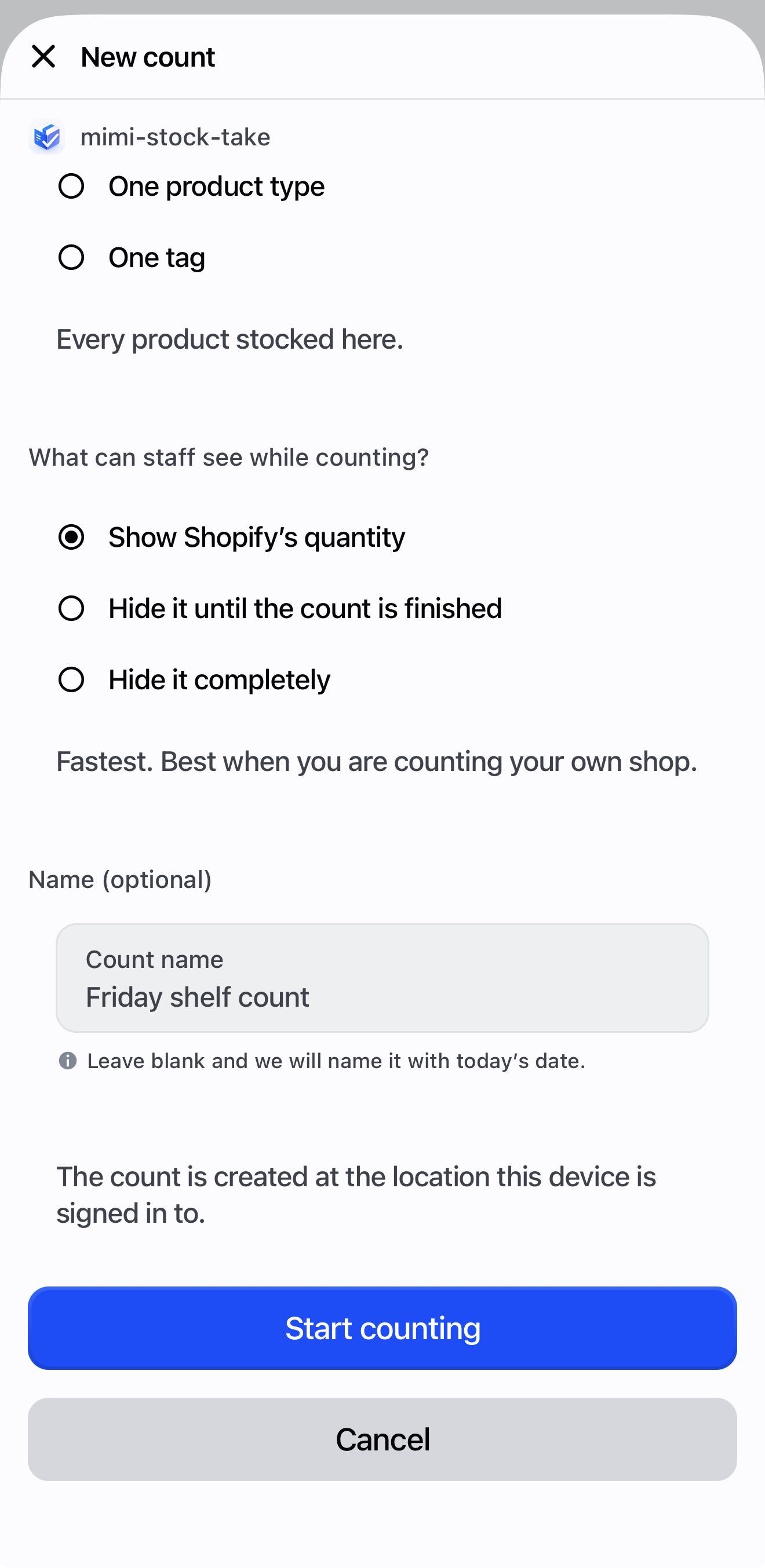
Blind applies to POS devices only. The admin always shows every expected quantity and every difference, whichever option you pick — and nothing is written to Shopify until you approve it.
Changing it later
From the admin, in either direction, instantly. From POS you cannot change a running count's mode at all.
There is one deliberate rule when starting a count on POS: making a count blinder is always allowed, but starting a less blind count over shelves already being counted blind is refused — otherwise anyone could open a second count over the same products and read the numbers off it.
Adjust stock is unavailable at that location for anyone without the passcode. It would show the live quantity and defeat the count.
Finishing and applying
The step that actually changes Shopify.
Finishing a count closes it to further counting. It changes nothing in Shopify. Applying is separate, and always tells you how many items will change first.
What to do with items nobody counted
| Option | What happens |
|---|---|
| Leave uncounted items alone | Only counted items are corrected. Everything else is untouched. |
| Set uncounted items to zero | Every product in scope that nobody counted is set to 0. |
On POS you choose at the end, when you apply. In the admin it is chosen when the count is created — the Set uncounted items to zero box — and the confirmation before applying reminds you which it is.
It zeroes everything in the count's scope that nobody touched — including shelves nobody reached before closing time, and products that failed to load properly when the count was created.
Use it only when the count genuinely covered every product in scope and you know anything not found is genuinely gone. Otherwise choose Leave uncounted items alone. There is no undo.
Counting took days, and you kept selling?
Applying normally sets each product to the number you counted. If you counted on Monday and sold two on Tuesday, applying on Wednesday would put those two back. So when you apply, the app asks how:
| Option | What it does | Choose it when |
|---|---|---|
| Set Shopify to what I counted | Each counted product becomes exactly the number you counted | You counted in one go |
| Only apply the difference I found on POS: “Only apply the difference found” | Each counted product moves by the gap you found when you counted it — sales made since are kept | Counting took a few days and you kept selling |
The difference option is only offered when the app recorded Shopify's quantity for every product at the moment it was counted. If it is missing, apply the count normally.
Mark counted products in Shopify
Switch on Tag counted products (in Settings, on the create page, or on the count itself) and every product you count and apply gets a tag in Shopify — MiMi Counted unless you choose another. Your product list in Shopify can then be filtered to show what has been counted, and a Products without a tag count picks up everything that was missed.
- It has to be on before you apply. It cannot be added to a count afterwards.
- The app never removes the tag. Clear it in Shopify when you start a new cycle.
- The first time, Shopify asks you to approve a permission to edit products. Until you do, the count shows Tag remaining products — press it once you have approved.
Reading the count
| Column | Means |
|---|---|
| Expected | What Shopify had when the count was started — a snapshot, not a live number |
| Counted | What you found |
| Discrepancy | Counted minus Expected. Positive means more on the shelf than Shopify thought. |
Expected is fixed on purpose — if it tracked live stock, the difference would move every time you sold one. If a count has been open a while, press Update from Shopify on the count page to re-read it.
The app re-reads your stock from Shopify automatically just before it writes anything, so the figures that decide the update are never stale — only the ones you are reading on screen beforehand.
Changing your mind
Reopen puts a finished count back into counting. On a count already applied, use Reopen to recount — it re-reads Shopify's quantities first, so you are counting against current numbers.
After applying: record what it is worth
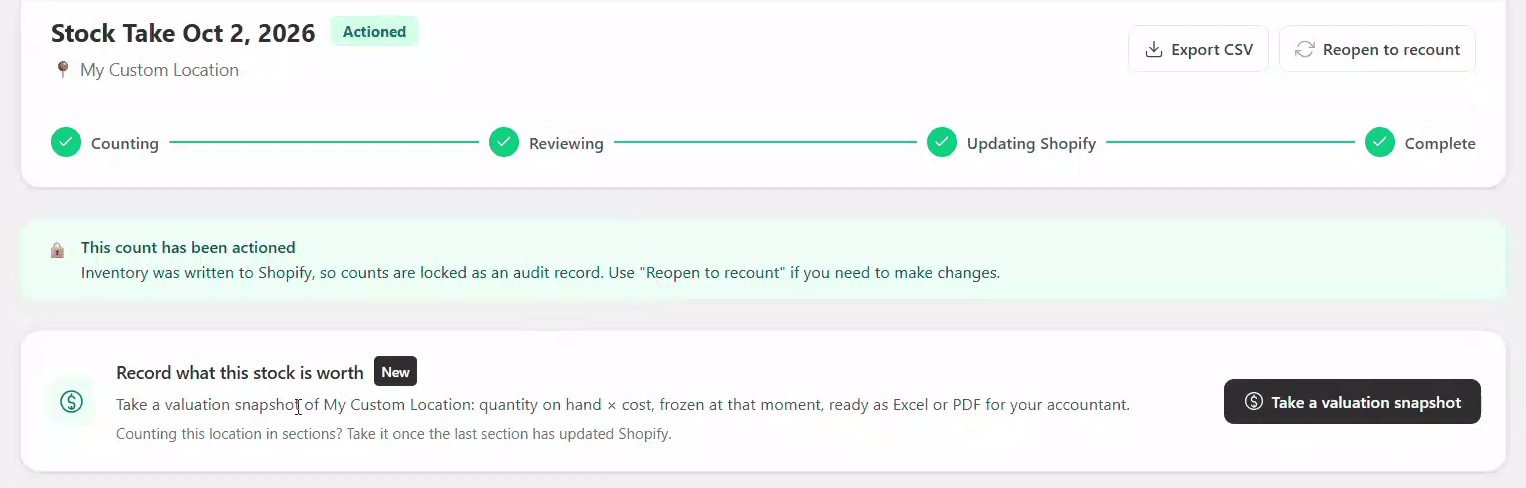
An applied count shows a Record what this stock is worth card. Its button opens Stock valuation with the count's location already chosen, so the value of your freshly corrected stock is one more click away.
Deliveries
Checking a supplier's boxes before their contents become your stock.
Applying a delivery adds what you received to what Shopify already has. A stock take replaces the figure with your count.
Never use a stock take to record a delivery — you would wipe out everything already on the shelf.
-
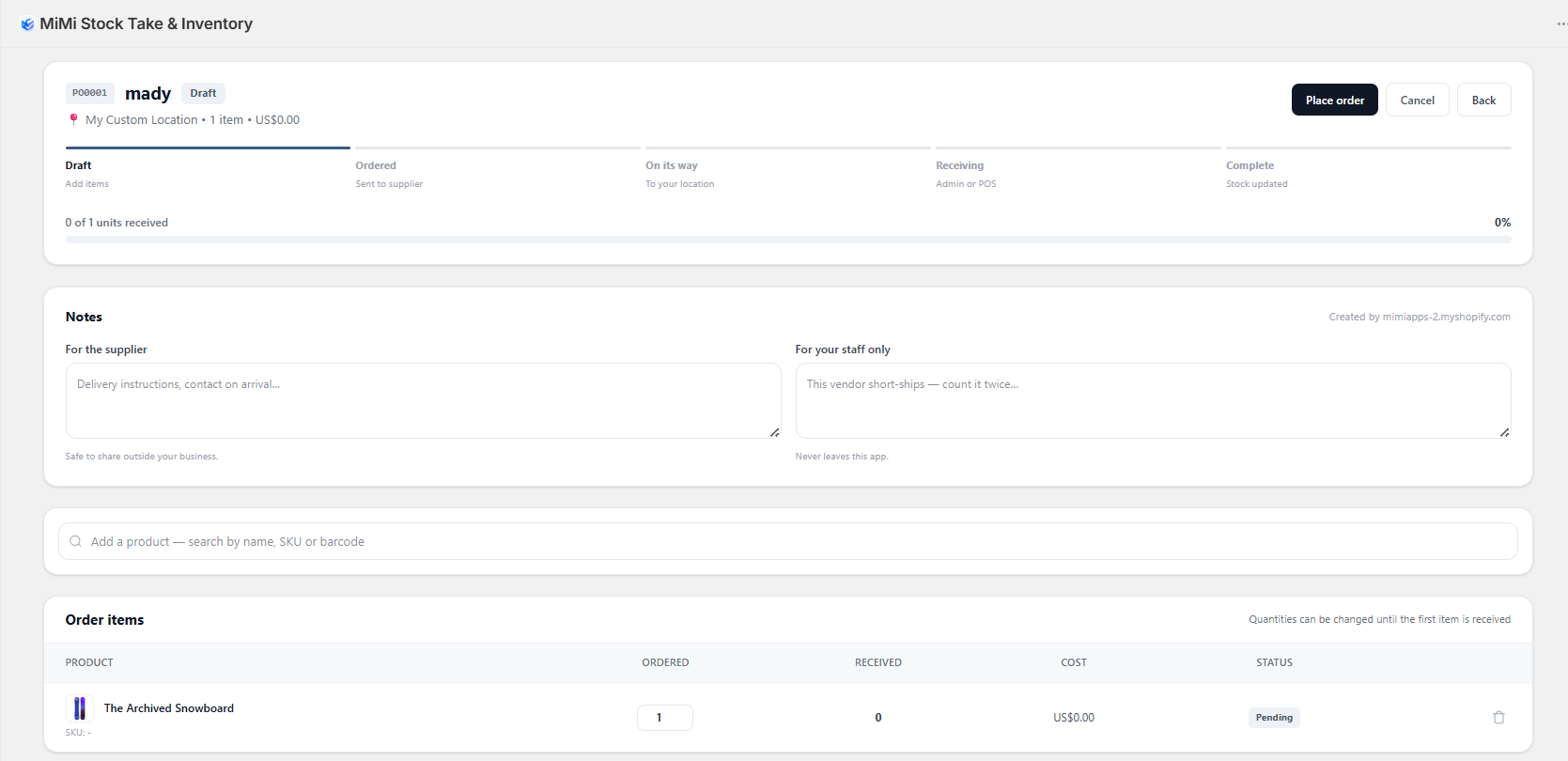
Create the order Admin
Purchase orders → Create purchase order. Choose the destination location and the supplier, then add products with quantities and costs. The supplier can be changed later from the order's details.
Got the supplier's list as a spreadsheet? Import from CSV fills the order for you: one row per product, with a barcode or SKU and a quantity — a cost column is optional. Download an example file shows the layout. Rows that match nothing in your store are listed and skipped, and nothing is saved until you press Create Purchase Order.
-
Place it, then ship it Admin
Place order when it goes to the supplier, Mark as shipped when they dispatch. Both are record-keeping — nothing touches Shopify.
-
Count what arrived POS
Open the Deliveries tile, pick the order, and scan each item as you unpack.
Each scan counts straight away and shows you what it counted — the product picture, its name, and the number it now stands at, with what the paperwork said was ordered. Change the number there if it is wrong, then Scan next to carry on or Done scanning to go back to the list.
The camera closes itself after every scan, so you always see what was recorded rather than a viewfinder.
In the admin you can also press Receive everything if you have checked the boxes by eye.
-
Add it to Shopify POS
Press Add N units to Shopify and enter the manager passcode. Only now does your stock go up.
These are two different things, and it is the most common confusion in the app. Counting a delivery in only records numbers here. An order can read received while none of it has reached Shopify.
Watch for the amber strip: “3 received units have not been added to Shopify stock yet.” That is the one that matters.
The app only ever sends what it has not sent before, so a second press does nothing. Count a delivery over two days and only the new units go across.
Receiving more than you ordered is refused unless you turn on Allow receiving more than was ordered in Settings.
Transfers
Moving stock between your own locations.
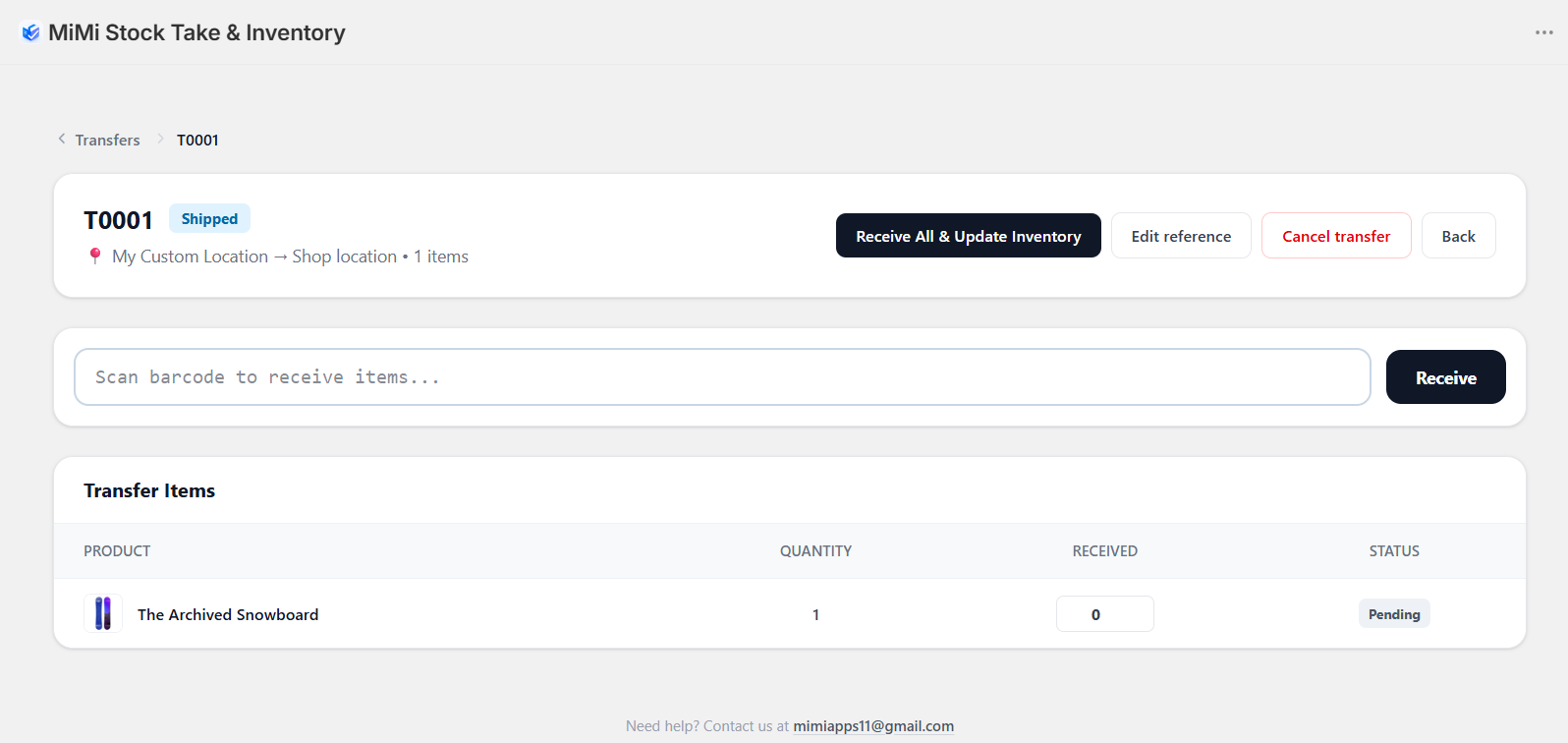
Deliberately two-ended: one location sends, the other counts what actually turned up. Shopify changes only at that second step, so stock in transit is never lost.
-
Build it Admin
Transfers → Create transfer order. Pick origin and destination, then add products. You can also start one on POS with the Transfers tile.
-
Send it Admin
Mark as shipped. Nothing has moved in Shopify yet.
-
Count it in at the other end POS
On a device signed in to the destination, the transfer appears under Arriving for you. Scan each item as you unpack.
As with deliveries, each scan counts immediately and shows you the product and its new figure, with a box to correct it. The camera closes after every scan so you can see what was recorded.
-
Move the stock POS
Confirm, and Shopify moves it: down at the origin, up at the destination, in one step.
Handled automatically — the app starts stocking it there before moving the units. Nothing to set up first.
Once any stock has moved in Shopify the transfer cannot be deleted — that would leave the movement done and no record of why. Cancel it instead, which keeps the history.
Add and remove stock
Two POS tiles for stock that arrives or leaves without a delivery or a sale — donations, returns, damage, samples, items out on loan.
Both tiles change Shopify by exactly what you scan, on top of what is already there. Sales carry on as normal while someone scans. To correct a whole shelf to the number on it, run a count instead.
Add Stock POS
Open the Add Stock tile and scan what came in — with a scanner or Scan with camera. Every scan adds one; change the number on screen if you have several. Each line shows what Shopify has and what it will become, or New to this location for a product this shop has never stocked — the app starts stocking it there for you.
Press Add N items to stock, check the list, and confirm with Yes, add to Shopify stock and the manager passcode. Up to 40 different products per batch.
Remove Stock POS
- Open the Remove Stock tile and choose why the stock is leaving — the reasons are your list from Settings, or Something else to type one.
- Choose Gone for good, or Coming back — put on the hold list for things like try-ons, loans and repairs.
- Scan what is leaving, press Take N items out, and confirm with the manager passcode.
Sold items are not for this tile — the till already takes them off. And you cannot take out more than Shopify shows at the location: that line is refused with “Shopify only shows N of these here”, so check the shelf first.
The hold list
Anything taken out with Coming back waits on the hold list. Open it from Remove Stock with See what's on hold: every item, its reason, and how long it has been out — the badge turns red after two weeks.
When it returns, press Put it back. Do the same if it was bought while it was out: the till has already taken one off, so putting it back keeps the numbers right either way.
Use Put it back rather than scanning the item into Add Stock. Add Stock does not clear the hold, so the item would stay on the list and could be put back a second time later.
Both tiles need Update Shopify stock from POS switched on in Settings, and the manager passcode if your shop asks for one. Everything they do is recorded, with its reason, in the Adjustments and Stock Changes by Reason reports.
Adjust stock
Correcting one product on the spot, without running a count.
Found one broken box? Open the product on POS and use Adjust stock. Type how many are actually there, pick a reason, save.
Unlike everything else in this app, an adjustment writes to Shopify the moment you save. No draft, no review, no undo. The number you type becomes the quantity.
It is for a one-off correction. To fix a whole shelf, run a count.
Reasons ship as Damaged, Theft or loss, Miscounted, Returned to supplier and Expired. Edit them in Settings → Stock takes → Adjustment reasons, one per line — the same list is used by Remove Stock. Staff can also type their own. Every adjustment shows in Report & Export → Adjustments.
Worth reviewing now and then: a month of theft says move the display; a month of damaged says fix the shelving.
Reorder points
Being told what is running low, before it runs out.
Set two numbers against a product at a location: warn me at, and fill back up to. When stock drops to the first, the product appears on What needs reordering — and the app can turn that list into a draft purchase order with the quantities already worked out.
- At the shelf — open the product on POS and use Reorder point
- In bulk — the Replenishments page in the admin, or import a spreadsheet
Nothing happens automatically. No orders are placed and no emails are sent — the app builds a draft for you to review.
Low stock is measured on available stock, so units already promised to unfulfilled orders do not count as stock you have. A product can be flagged low while boxes of it sit on the shelf, reserved for orders.
Reports and stock value
Everything the app knows, out as a spreadsheet — and what your stock is worth on the day.
Reports
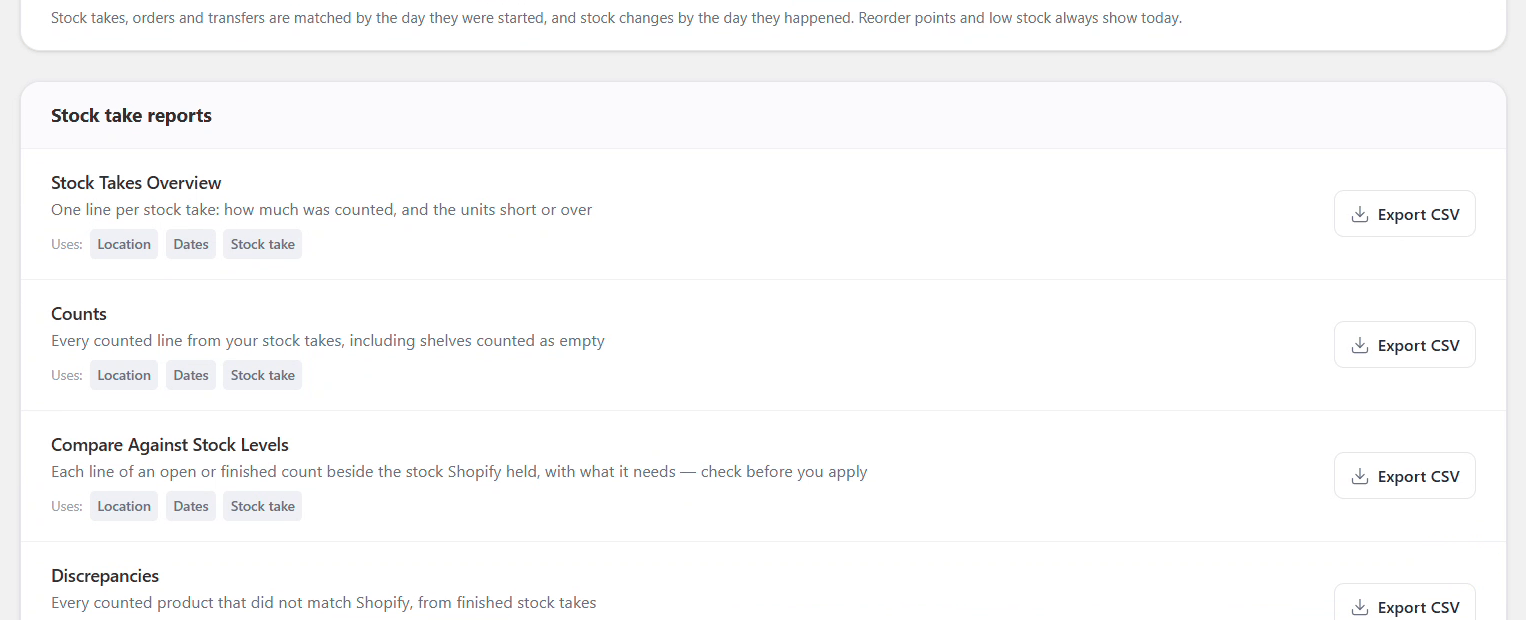
Open Reports in the app. Every report downloads with one Export CSV button and opens in Excel or Google Sheets. Narrow them all at once with Filter the reports: a location, one stock take, or a date range.
| Group | Reports |
|---|---|
| Stock takes | Stock Takes Overview, Counts, Compare Against Stock Levels, Discrepancies, Find Missing Items, Counted Stock Levels, Last Counted, Scans, Counts by Person |
| Stock changes | Adjustments, Stock Changes by Reason |
| Replenishment | Reorder Points, Low Stock |
| Purchase orders | Purchase Order Summary, Purchase Order Lines |
| Transfers | Transfer Summary, Transfer Lines |
| Audit | Activity History |
Discrepancies lists every difference with its unit cost and what it was worth, with totals for the value gained, the value lost and the net — using the cost per item set in Shopify.
Stock valuation
What your stock at one location is worth: quantity on hand × the cost per item in Shopify, frozen at the moment you take it. It reads the same in six months as it did on the day, however much your stock changes afterwards — a line in the sand for your accountant.
-
Take a snapshot Admin
At the top of Reports, choose a location and press Take snapshot. A large catalogue takes a few minutes — keep the page open until it shows Ready.
-
Download it Admin
Pick the file you need. Snapshots are kept, so you can download them again at any time.
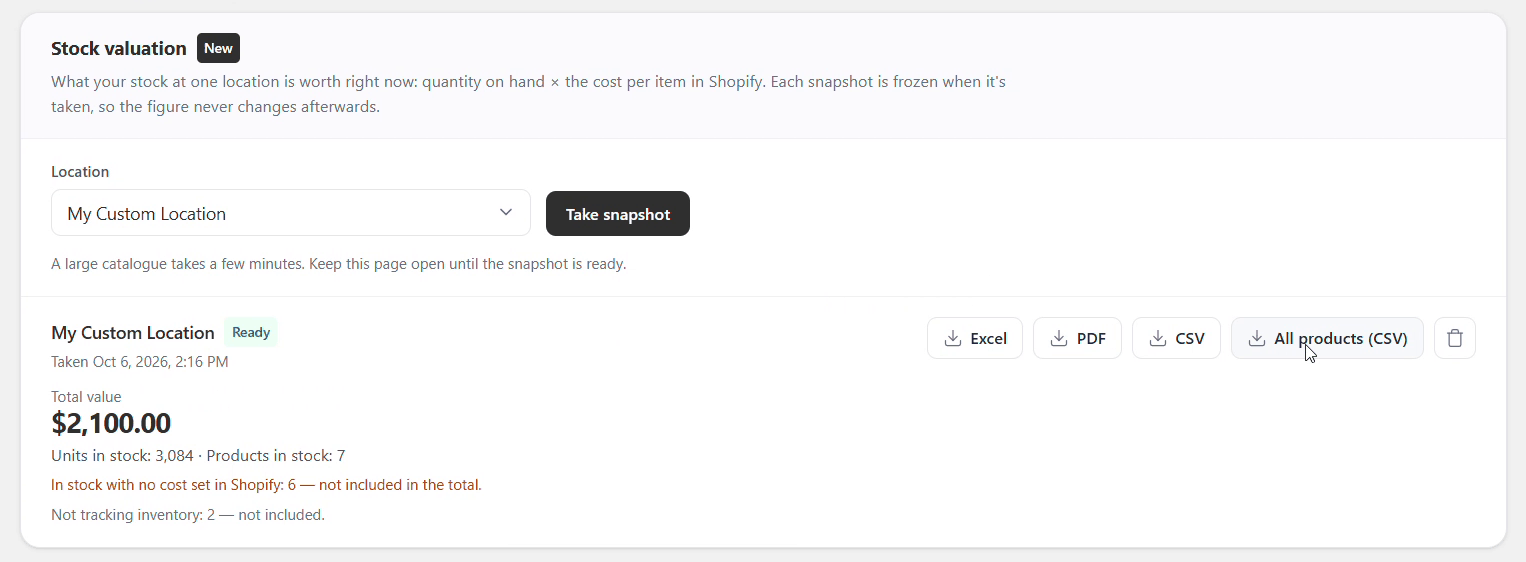
A ready snapshot: the total, what it covers, and the files.
| File | What it holds |
|---|---|
| Excel or PDF | Every product in stock — product, variant, SKU, quantity on hand, unit cost and value — with the grand total |
| CSV | The same lines, as a spreadsheet file |
| All products (CSV) | Every product at the location, including those with none in stock, with a Stocked here column |
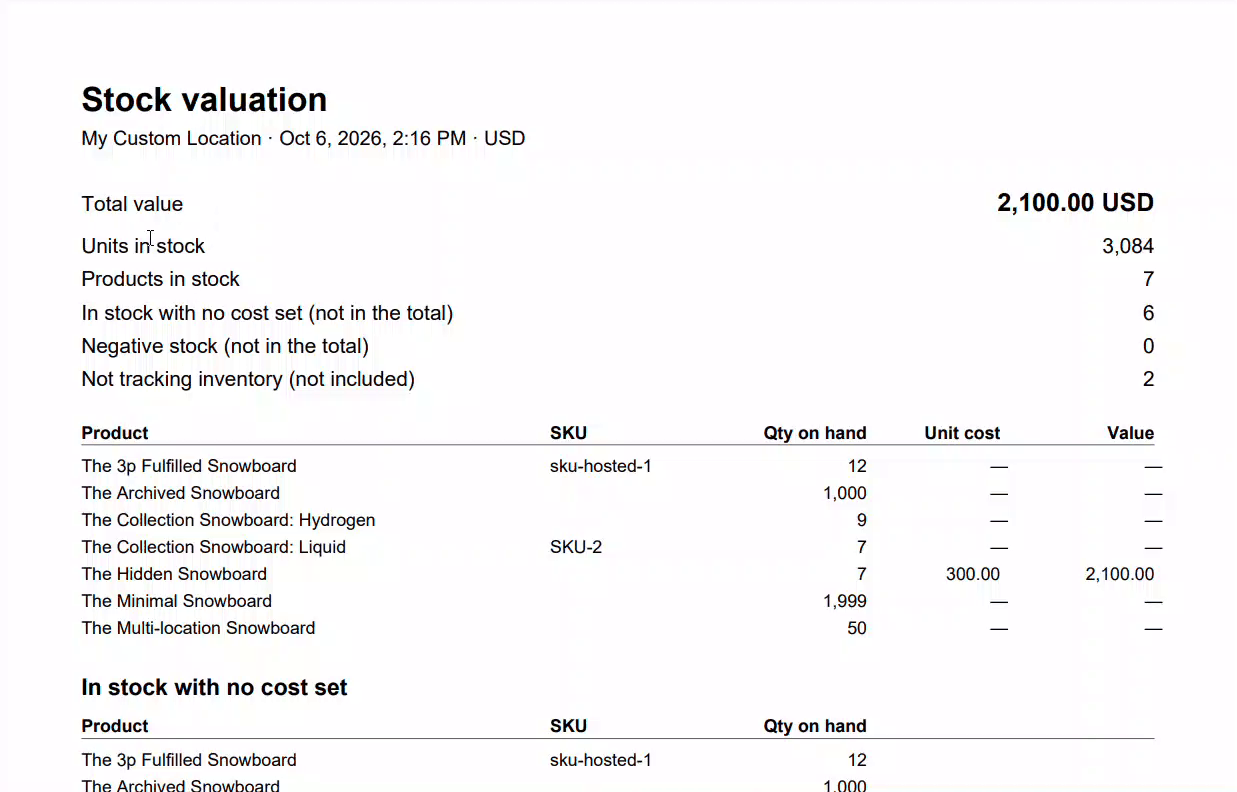
Products in stock with no cost set in Shopify are listed on their own and kept out of the total, so the figure is never quietly too low. Set a cost per item in Shopify and take a new snapshot to include them.
Negative stock is listed separately and not counted. Products whose stock Shopify does not track are left out.
- Quantity on hand includes units committed to unfulfilled orders — they are still yours. It is the same figure as Shopify's On hand column.
- A snapshot reads Shopify at the moment it is taken. Counting a location in sections? Take it once the last section has been applied.
- One snapshot runs at a time, and the newest 25 are listed. Delete one with the bin button.
- The PDF holds up to 25,000 lines in stock — beyond that, use Excel or CSV. Product names in scripts the PDF cannot show, such as Chinese or Japanese, print as question marks; the app warns first, and Excel and CSV show every name correctly.
Settings
Everything on the Settings page, what it does, and how it ships.
Settings has three tabs: POS access, Stock takes, and Purchase orders & transfers. The team link is not here — it lives on each count.
Products to leave out of counts
Some of this is handled for you. A product whose quantity Shopify does not track — a gift card, a service, a deposit, a made-to-order line — is already left out of every count. There is no number to compare a count against and Shopify refuses to have one written, so such a product could only ever be a row nobody can use. You do not have to configure anything for that.
A product that is tracked but not yet stocked at the location you are counting still appears, with an expected quantity of 0. That is deliberate: counting one and applying the count is how you start stocking it there — which is exactly what you want the first time you count a new shop.
If you would rather not see them, tag them and use the setting below.
The setting is for the judgement calls — stock you could count but have decided not to: a dropship supplier's range, consignment stock, display-only samples. Tag those products in Shopify, then put the tag in Skip products with these tags. Separate several with commas:
consignment, display-only, staff-samples
From then on, every new count leaves those products out — on POS and in the admin, without anyone having to remember.
The setting applies when a count is created. A count that is already open keeps the products it was built with, so nothing disappears from under someone who is halfway through counting.
POS access
| Setting | Default | What it controls |
|---|---|---|
| Skip products with these tags | Blank | Products with any of these tags are left out of every new count |
| Start stock takes on POS | On | Whether staff can begin a count from the tile |
| Receive deliveries on POS | On | The Deliveries tile |
| Receive transfers on POS | On | The Transfers tile |
| Mark counts as complete on POS | On | Whether staff can close a count |
| Update Shopify stock from POS | On | The big one — whether a device may change your inventory at all: applying counts, adding deliveries, Add Stock, Remove Stock and Adjust stock |
| Tag counted products | Off | Tags every product you count and apply — see Mark counted products in Shopify |
| Tag to add | MiMi Counted | The tag it adds |
Manager passcode
| Setting | Default | What it controls |
|---|---|---|
| Ask for a passcode before updating stock | On | Applies to finishing counts, applying them, adding deliveries, Add Stock, Remove Stock, putting held items back, and adjustments |
Switching this off asks for the passcode first — so a device cannot switch off the control protecting it.
New counts started on POS
The defaults a count inherits when staff start one on a device. They do not affect counts created in the admin.
| Setting | Default | What it controls |
|---|---|---|
| Count name prefix | Stock Take | The date is added automatically |
| Scan every unit | Off | Staff scan each item rather than typing a quantity. They can still mark a shelf empty. |
| POS devices can add to the count | On | Turn off to make counts viewable on POS but editable only in the admin |
| Treat uncounted items as zero | Off | See the warning under Finishing and applying. Leave this off. |
Adjustment reasons
| Setting | Default | What it controls |
|---|---|---|
| Reasons | Damaged, Theft or loss, Miscounted, Returned to supplier, Expired | The list staff pick from in Remove Stock and Adjust stock, one per line. Add your own — Try-on or On loan, say. |
Receiving
| Setting | Default | What it controls |
|---|---|---|
| Show a receive all button | On | Lets staff accept a whole delivery in one tap |
| Allow receiving more than was ordered | Off | Whether a quantity above the ordered amount is accepted |
Common questions
The things people ask before they hit a problem.
What does it cost?
One plan with every feature, at every location, for all your staff — no per-location or per-user fees. New shops start with a 7-day free trial. The current price is on the Pricing page in the app.
Shops that joined early keep the app free, for good. If that is you, your dashboard says so — there is nothing to do.
Do I need Shopify POS Pro?
No. Everything works on standard Shopify POS — counting, barcode scanning, deliveries and transfers included.
Do I need a barcode scanner?
No. The device camera works, and you can always search a product by name and type the quantity.
A paired scanner gun is faster on a long shelf, and the app works with one immediately — it listens from the moment a count opens, with nothing to set up.
Does it work with more than one location?
Yes. Each count belongs to one location, and a POS device counts into the location it is signed in to.
To count two shops, run one count per shop. Transfers are how stock moves between them.
Can two people count at the same time?
Yes, on separate devices, into the same count — POS devices, the admin and team link phones all at once. Their scans add together — each scan means “one more of this”.
That is usually what you want. It does mean two people counting the same shelf will double it, so split the shop up between them. Who counted what on the count page shows who did what.
Can staff count without Shopify POS or a Shopify account?
Yes. Send them the count's team link and its PIN. They count in their phone's browser — no account, no app, nothing to install — and everything they count is saved under the name they type.
Does it work without internet?
Counting does. Scans are saved on the device and sent when the signal returns, and the screen updates immediately either way.
Starting a new count and applying one both need a connection. A device holds up to 250 pending counts — get back into signal before closing the app if the screen says it is waiting.
How many products can one count hold?
20,000. A count that big keeps loading in the background for a few minutes. If a location holds more, count it in slices — by vendor, type, tag or collection — or choose Scan as you go, which has no limit. See Cycle counts.
Will it change my stock without asking?
No. Counting, receiving and building transfers all stay inside this app. Shopify changes only when somebody presses the button that applies them, and that button says how many items it will touch first.
The one exception is Adjust stock, which is designed to be immediate and says so on screen before you save.
What permissions does it ask for, and why?
Five, and no more than it uses:
- Read products — to build the list of what to count, and to find a product when you scan it
- Read locations — to know which shops you have
- Read inventory — to show what Shopify currently has, and the cost per item for stock valuation
- Write inventory — to apply your counts, deliveries, transfers and stock changes
- Write products — only to add a tag to products you counted, if you switch on Tag counted products
It asks for no access to orders, customers or payments, because it never needs them.
What happens to my data if I uninstall?
Your Shopify inventory is untouched — anything already applied stays applied, because it is your stock, not ours.
Your counts, purchase orders, transfers and stock valuations inside this app are erased the moment you uninstall. Reinstalling does not bring them back, so export anything you want to keep first.
Your settings are kept for 48 hours, so a quick reinstall finds the app set up as you left it; after that they are erased too. We keep only your store's name, contact details and basic settings, so that we can still reach you.
Which barcodes work?
Any format the device camera or your scanner can read — EAN-13, UPC-A, Code 128, QR and others.
What matters is that the code is in the Barcode field on the product variant in Shopify. A scan that finds nothing almost always means the barcode is not on the variant, rather than the format being unsupported.
Can I get the results out?
Yes. Every count has an Export CSV button in the admin, with product, barcode, SKU, expected, counted, difference and when it was counted.
Reports has eighteen more — differences with their value, counts by person, stock changes by reason, orders and transfers — and Stock valuation gives you what your stock is worth as Excel or PDF.
Does it work with Shopify Sidekick?
Yes. Ask Sidekick about your open stock takes, purchase orders, transfers or what is running low, or how to do something in the app. It can only read — it cannot start or apply a count, or change your stock.
Can I undo a count after applying it?
Not as a single undo. Applying writes real quantities to Shopify.
What you can do is Reopen to recount, which re-reads Shopify's current figures so you are counting against what is there now, then count and apply again to correct it.
This is why the safe option at the apply step is Leave uncounted items alone — see Finishing and applying.
Troubleshooting
The messages you are most likely to meet, and what each one means.
“Ask your manager to set a manager passcode…”
The passcode is required but has never been set. Go to Settings → POS access → Manager passcode → Set passcode. This is the most common thing to hit on a brand-new install — see Setting up.
“This count can only be finished in the Shopify admin”
That particular count was created with POS finishing switched off. Counts created in the admin default to this.
You do not have to walk to a computer — tap Unlock with the manager passcode on the device. Or tick the box on the create page next time.
“…is switched off for your store”
A shop-wide switch is off. Check Settings → POS access. Wording that mentions your store means the shop-wide setting; wording that mentions this count means that one count's own setting.
“No products matched this stock take”
Almost always the scope value not matching exactly — check capitals and spelling against the product in Shopify. Also check you picked the right location.
“Some products could not be loaded from Shopify”
Shopify did not return everything, usually because it was busy. The count is missing products. Review the list before counting, or delete it and create it again.
“Waiting for N saved count(s)”
The device is holding counts that have not reached the server. Get back into signal and they send themselves. Do not close the app until this clears.
“This stock take is already being applied to Shopify”
Somebody else is applying it right now, or a previous attempt is still running. Wait a moment and refresh. This exists to stop the same stock being written twice.
“Only N of X were expected”
You are receiving more than was ordered. Turn on Allow receiving more than was ordered in Settings if that is normal for your suppliers.
“Not in this count: …”
The product you scanned is not part of this count's scope — a different vendor, tag or collection, say. Check you opened the right count. On a Scan as you go count this does not happen: the product is looked up and added.
“This count holds N products … as many as one count can hold”
The count reached its limit of 20,000 products. Split the location into smaller counts — by vendor, type, tag or collection — or use Scan as you go, which has no limit.
“No barcode found in that photo”
The admin camera reads one barcode per photo. Fill the frame with the barcode, hold steady and try again — or type the barcode into the scan bar instead.
“Your manager has paused counting from phones for this stock take”
A team link phone is trying to count, but this count does not let devices add to it. In the admin, open the count and press Allow devices to count.
“This link no longer works”
The team link was turned off, or replaced with New link and PIN. Ask for the new link. Everything counted before is kept.
“Too many wrong PINs…”
Ten wrong PINs from one network mean a 15-minute wait; thirty in all pause the link for an hour. Check the PIN with whoever sent it. A manager can press New link and PIN to unlock it straight away — then share the new link.
“Changing Shopify stock from POS is switched off…”
Add Stock, Remove Stock and the other stock changes on POS are switched off for your store. A manager can turn them on in Settings → POS access → Update Shopify stock from POS.
“Shopify only shows N of these here…”
Remove Stock will not take out more than Shopify shows at this location, so that line does not go through. Check the shelf — if there really are more, count the shelf first so Shopify knows.
“Products were not tagged…”
Shopify has not yet given the app permission to edit products, which tagging needs. Approve the updated permissions when Shopify asks, then press Tag remaining products on the count.
“Only apply the difference” is not offered
The app could not record Shopify's quantity for every product at the moment it was counted, so it cannot work out the difference safely. Apply the count normally instead.
“A blind stock take is running at this location”
Adjust stock and Add Stock are unavailable while a blind count is running there, because they would show the quantity the count is hiding — and a Scan as you go count cannot add new products by scanning. A manager with the passcode can still go ahead.
“Too many attempts. Try again in N minutes.”
Five wrong passcodes within fifteen minutes. It locks the whole shop briefly, not just that device. A correct entry clears it.
I have forgotten the manager passcode
There is no self-service recovery — it is stored in a form nothing can read back, which is what makes it safe. Changing or removing it needs the current one. Email us and we can clear it for you.
Two people counted the same shelf
Their counts add together, because each scan means “one more of this”. If you think a shelf was double-counted, open the count in the admin and type the correct figure before applying.
The count is finished but Shopify has not changed
Finishing and applying are two different steps. Finishing only closes the count. Open it and press Action — Update Shopify, or apply it from the device.
Glossary
| Term | Means |
|---|---|
| Apply / Action | The step that writes to Shopify. Nothing before it changes your stock. |
| Expected | What Shopify had when the count started. A snapshot. |
| Discrepancy | Counted minus Expected. |
| Blind count | A count where staff cannot see Shopify's figure. |
| Cycle count | Counting a section at a time on a rota, rather than everything at once. |
| Scope | Which products a count covers — everything; one vendor, type, tag or collection; products without a tag; products you pick; or scan as you go. |
| Scan as you go | A count that starts empty and adds each product the first time it is scanned. |
| Team link | A link and PIN that let staff count on their own phones, with no Shopify account. |
| Apply the difference | Moving Shopify by the gap a count found, rather than setting it to the counted number — so sales made since are kept. |
| Hold list | Stock taken out with Remove Stock that is coming back — try-ons, loans, repairs. |
| Snapshot | A stock valuation frozen at the moment it was taken. |
| On hand | Everything physically present, including units promised to orders. |
| Available | On hand minus units committed to unfulfilled orders. |
What it does not do
Said plainly, so you can tell early whether it fits how you work.
- Nothing happens automatically. No orders are placed for you, no emails are sent, no counts are scheduled. Reorder points build a draft for you to review — they never buy anything.
- One location per count. To count two shops, run two counts. A stock valuation also covers one location at a time — there is no combined figure for all locations yet.
- It does not track serial numbers, batches or expiry dates. It counts how many of a variant you have.
- It does not print barcode labels or generate barcodes for products that have none.
- It does not forecast demand. Reorder points are numbers you set, not a prediction.
- It does not connect to accounting software or push costs anywhere. Export a report, or take a stock valuation as Excel or PDF, if you need the numbers elsewhere.
Say so — in the live chat, by email, or on the Suggestions page. It is genuinely useful to know — several things in the app exist because somebody wrote in about what was missing.
Card for your staff
Your staff will not read this guide. Print this bit and pin it in the stockroom.
- Open the Stock Take tile on the POS device.
- Tap the count you were asked to do, or Start a new count.
- Scan each item, or search the name and type the number.
- Shelf empty? Tap None on shelf. Do not skip it — an empty shelf and a shelf nobody checked are different things.
- Twelve of the same item? Type 12 rather than scanning twelve times.
- Finished your section? Tap Finish counting.
- If it asks for a passcode and you do not have one, stop and fetch a manager.
- Open the link your manager sent you.
- Type your name and the 4-digit PIN they gave you, then tap Start counting.
- Scan each item, tap Use camera, or search the name and type the number.
- Count only the section you were given — two people on the same shelf double it.
- Sharing a phone? Tap Not you? so your counts are saved under your own name.
Nothing they do can break the stock. Counting changes nothing in Shopify until a manager approves it, so a wrong number is fixable and worth reporting rather than hiding.
If the screen says it is waiting to send counts, walk back into signal before closing the app.
Getting help
Support comes from the person who built the app — by live chat inside the app, or by email.
The chat bubble is in the corner of every page of the app. That means no hold music and no first-line script — but it also means one person answering, so the more your first message contains, the faster this is over.
Before you write
Check Troubleshooting. Most refusals are the app deliberately stopping something, and the message says which setting is responsible.
What to include
| Tell us | Why it helps |
|---|---|
| Your store address something.myshopify.com | Nothing can be looked up without it |
| Admin, POS or a team link phone | They are different screens with different rules |
| The message, word for word | Wording identifies the exact cause; a paraphrase usually does not |
| What you were doing | “Applying a count” and “finishing a count” fail for different reasons |
| A screenshot | Often answers all of the above at once |
Say so in the first line and do not apply anything else to that count meanwhile. Include the count name and roughly when it was applied. Stock problems get looked at first.
Missing something?
Open Suggestions in the app to ask for a feature, or vote for what other shops have asked for. Several things in this guide exist because somebody did.